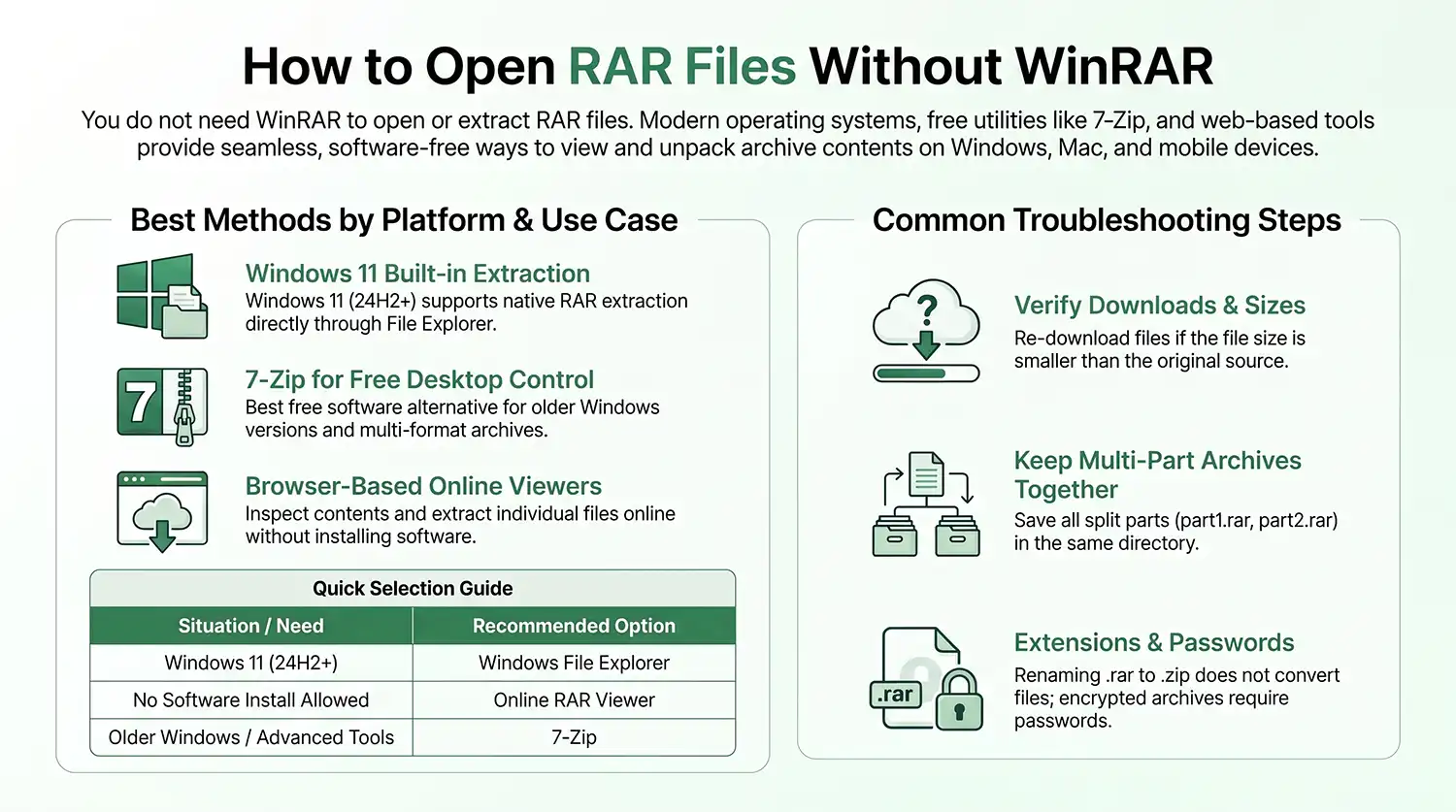
You do not need WinRAR for every RAR file. Depending on your device, you can use built-in tools, a free archive utility, or an online tool to open and extract RAR files.
This guide covers the easiest ways to open RAR files on Windows, Mac, Android, and iPhone, along with solutions for password-protected, corrupted, and multi-part archives.
Can You Open a RAR File Without WinRAR?
Yes. You can open a RAR file without WinRAR. On Windows 11, File Explorer can handle RAR files without extra software. On Windows 10, 7-Zip is a simple free option. You can also use an online RAR viewer without installing anything.
How to Open a RAR File Without WinRAR on Windows
Windows 11 version 24H2 and later can work with standard RAR archives through File Explorer.
Extract a RAR File
- Find the
.rarfile on your computer. - Right-click the file.
- Choose Extract All, if the option is available.
- Select the destination folder.
- Click Extract.
The extracted files will be placed in the folder you selected.
Need Only One File?
You do not have to extract the entire archive.
Open the RAR file, find the document, image, or folder you need, and copy it to another location.
This is especially useful when an archive contains hundreds of files but you only need one of them.
Use 7-Zip Instead of WinRAR
If your version of Windows cannot open RAR files directly, 7-Zip is a popular free alternative.
After installing it:
- Right-click the RAR file.
- Open the 7-Zip menu.
- Choose Extract Here to extract the contents into the current folder.
- Or choose Extract to… to select another location.
7-Zip is a good choice when you regularly work with different archive formats and want more control than the built-in Windows tools provide.
Open a RAR File Online Without Installing Software
Sometimes installing a desktop program is simply not worth it.
You may be using a work or school computer, a temporary device, or a system where you do not have permission to install software. You may also just want to check what is inside a RAR file.
In those situations, an online RAR viewer can be more convenient.
With Xplore File Manager, you can open a supported RAR archive in your browser and inspect its contents without installing WinRAR.
How to Use Xplore RAR Viewer
- Open Xplore RAR Viewer.
- Select your RAR file or drag it into the tool.
- Wait for the archive to load.
- Browse the files and folders inside it.
- Download the file you need.
This is particularly useful when you only need to check an archive or retrieve one file instead of extracting everything.
For example, if a RAR contains 500 files but you only need one PDF, you can simply open the archive, find the PDF, and download it.
How to Open a RAR File on Mac Without WinRAR
macOS does not handle RAR files as seamlessly as ZIP files, so you will usually need a compatible archive application or an online tool.
With a compatible app, the process is straightforward:
- Install an app that supports RAR archives.
- Open the RAR file.
- Choose where you want the contents extracted.
- Extract the files.
Do not want to install another app? Use an online RAR viewer instead.
How to Open a RAR File on Android
Android support for RAR depends on the file manager or archive app installed on your device.
If your current file manager cannot open RAR files, install a trusted archive utility that supports the format.
For a one-time task, an online RAR tool can be easier when you only need to inspect the archive or retrieve a specific file.
How to Open a RAR File on iPhone or iPad
RAR files are not handled as simply as ZIP files in Apple’s built-in file tools.
If tapping the RAR file in the Files app does not open it, use a compatible archive app or an online RAR viewer.
For occasional use, the online option can save you from installing another app just to open a single archive.
What If the RAR File Is Password-Protected?
Some RAR archives are protected with a password.
If you see a password prompt, you need the correct password to access the encrypted contents.
Enter the password supplied by the person or service that created the archive and try the extraction again.
A password-protected archive should not be treated like a normal RAR file. Without the correct password, you generally cannot access its encrypted contents through standard extraction.
What If the RAR File Will Not Open?
A RAR file that fails to open may be damaged, incomplete, or missing part of a multi-volume archive.
Try these checks first.
Download the File Again
If the RAR came from the internet, the download may have been interrupted or incomplete.
Downloading it again is one of the simplest troubleshooting steps.
Check the File Size
If the downloaded file is much smaller than the size shown by the original source, it may not have downloaded completely.
Make Sure All Parts Are Present
Some large archives are split into several files, such as:
backup.part1.rar
backup.part2.rar
backup.part3.rar
You normally need all parts in the same folder before extraction can work correctly.
Start the extraction from the first part.
The Archive May Be Corrupted
If the file still fails after downloading it again, the archive itself may be damaged.
In that case, you may need a compatible repair or recovery tool.
Can You View the Contents of a RAR Without Extracting Everything?
Yes.
You do not always need to unpack an entire archive just to find out what is inside.
A RAR viewer can let you browse folders and locate individual files first. You can then extract or download only what you actually need.
For example:
project.rar
├── documents
│   ├── invoice.pdf
│   └── contract.pdf
├── images
│   ├── logo.png
│   └── banner.jpg
└── readme.txt
If you only need invoice.pdf, there is no reason to extract the images and other files as well.
What Is the Difference Between RAR and ZIP?
RAR and ZIP are both archive formats used to store multiple files and folders in a single package.
A RAR file normally uses the .rar extension, while ZIP files use .zip.
The important point is that renaming a RAR file to .zip does not convert it into a ZIP archive.
To create a real ZIP file from RAR contents, you need to extract the files and then create a new ZIP archive.
Which Method Should You Use?
| Situation | Best Option |
|---|---|
| Windows 11 24H2+ with a standard RAR | File Explorer |
| Older Windows versions | 7-Zip or another compatible archive tool |
| No software installation | Online RAR viewer |
| You only want to inspect the archive | RAR Viewer |
| You need one file from a large archive | Browse and extract that file |
| Password-protected RAR | Compatible tool + correct password |
| Multi-part RAR | Keep all parts together |
| Corrupted RAR | Re-download or try repair/recovery |
What Is the Fastest Way to Open a RAR File Without WinRAR?
For a standard RAR on a supported version of Windows 11, try File Explorer first.
If your Windows version does not support RAR directly, 7-Zip is a simple free alternative.
When you do not want to install anything, use an online RAR viewer to inspect the archive and access the files you need.
Frequently Asked Questions
Can I open a RAR file without WinRAR?
Yes. You can use Windows File Explorer on supported Windows 11 versions, 7-Zip, another compatible archive utility, or an online RAR tool.
Can I open a RAR file without installing software?
Yes. An online RAR viewer can let you inspect a supported archive directly from your browser.
Can I extract just one file from a RAR archive?
Yes. You can open the archive, locate the file you need, and extract or download it without unpacking everything else.
Why is my RAR file not opening?
The archive may be incomplete, corrupted, password-protected, or part of a multi-volume archive with missing files. Re-downloading the archive and checking for missing parts are good first steps.
Can I open a password-protected RAR without the password?
Normally, no. You need the correct password to access encrypted contents.
Can I rename .rar to .zip?
No. Changing the file extension does not convert the archive. You need to extract the contents and create a new ZIP archive.
Final Takeaway
You do not have to install WinRAR every time you need to open a RAR file.
Use File Explorer when your version of Windows supports RAR, 7-Zip when you need a desktop archive tool, or an online RAR viewer when you want to work directly from your browser.
For large archives, remember that you may not need to extract everything. Find the file you actually need and extract only that one.