SVG Viewer Online – Open & View SVG Files
Drop the vector. See every detail instantly.
Open SVG files directly in your browser, inspect dimensions and vector structure, switch preview backgrounds, zoom into details, copy the SVG code and export a PNG preview.
Drop your SVG file here
Your vector appears immediately — no upload, no conversion, and no waiting around.
.SVG files · Original file stays untouchedOpen an SVG file and see the vector before using it
An SVG can look like a normal image in a browser, but underneath the preview it is structured vector markup. That structure can contain paths, shapes, text, reusable elements, dimensions and a viewBox that controls how the graphic behaves at different sizes.
The SVG viewer above lets you open that file as both a visual graphic and a vector document. Preview the artwork, inspect its dimensions and structure, zoom into small details, change the preview background, view the SVG source and export a PNG when you need a raster copy.
This vector workspace is part of Xplore File Manager, a collection of browser-based tools designed to help you open, inspect and work with files without turning a simple task into a full desktop workflow.
How to open and view an SVG file online
Start with the original SVG file or paste its markup directly. Once the vector opens, you can move from a simple visual check to technical inspection and finally export the format you need.
Choose the SVG file you want to view
Click Choose SVG file and select the .svg graphic from your device. Drag and drop works too, so you can place the file directly onto the viewer.
The tool checks that the selected file looks like SVG markup before building the preview. Files larger than the viewer's 20 MB limit are rejected before processing.

Or paste SVG code directly
If you already have the SVG markup instead of a saved file,
choose Paste SVG code, paste the complete
<svg>...</svg> markup and click
View SVG.
This is useful when you are working with an SVG snippet copied from a project, icon library or code editor and simply want to see what it renders.
Preview the vector and inspect its SVG details
Once the graphic opens, the preview appears beside the SVG Inspector. Use it to check the rendered dimensions, viewBox, file size, total element count, root width and height, and the number of detected vector nodes.
This is particularly useful when an SVG looks correct but behaves strangely after being placed inside a website or interface. The dimensions and viewBox can reveal how the vector has actually been defined.
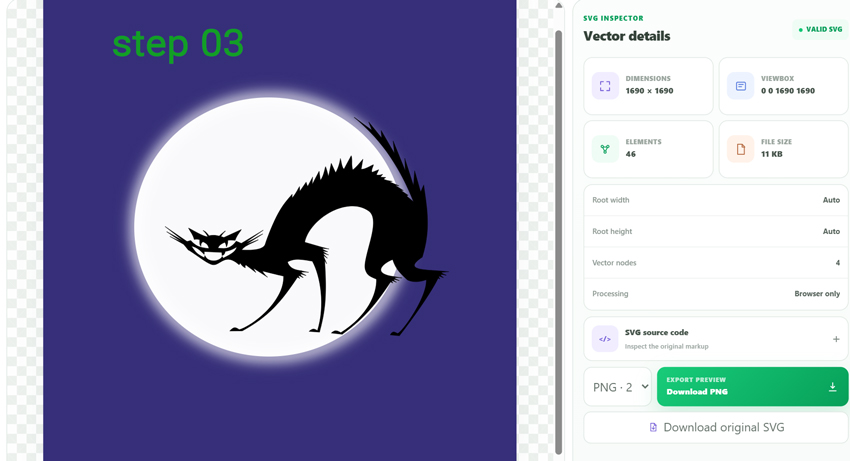
Zoom in and test the SVG on different backgrounds
Use Fit to bring the full vector into view, or zoom in when you need to check small curves, icons, thin strokes or alignment more closely.
You can also switch between checkerboard, white and dark preview backgrounds. That makes transparent areas, white artwork and edge details easier to judge without changing the original SVG.
Export the SVG preview as PNG
When you need a raster image instead of a vector file, choose PNG 1×, 2× or 4× and click Download PNG.
The original SVG is not replaced. You can export a separate PNG preview and still use Download original SVG when you want to keep the vector format.

What is an SVG file?
SVG stands for Scalable Vector Graphics. Instead of describing an image as a fixed grid of pixels, an SVG can describe visual objects with markup: paths, rectangles, circles, lines, polygons, text and other elements.
Because the artwork is defined mathematically and structurally, vector graphics can usually scale to very different sizes without becoming pixelated in the way a low-resolution raster image would.
SVG is especially common for logos, interface icons, illustrations, diagrams and graphics used on websites.
<svg viewBox="0 0 100 100">
<path d="..." />
<circle ... />
<text>...</text>
</svg>
Look beyond the picture and inspect the vector itself
A visual preview tells you what the SVG looks like. The inspector helps answer the next question: how has that vector actually been defined?
Check the usable dimensions derived from the SVG's width, height or viewBox information.
Inspect the SVG viewBox value that defines the internal coordinate system used by the graphic.
See how many descendant elements exist inside the SVG document.
Count common vector elements such as paths, rectangles, circles, lines, polygons, text and reusable elements.
Check the width and height values placed directly on the root SVG element when they are available.
See the size of the SVG file or pasted markup currently loaded into the workspace.
What does viewBox mean in an SVG?
A typical SVG viewBox contains four numbers: min-x, min-y, width and height. Together they define the internal coordinate area that the browser should display.
This is different from simply asking how many pixels wide an image is. The viewBox is one of the reasons an SVG can adapt cleanly to different displayed sizes.
<svg viewBox="0 0 24 24">
<path d="..." />
<circle cx="12" cy="12" />
</svg>
View and copy the original SVG source code
SVG is readable markup, which makes the source itself useful when you are debugging a graphic, moving an icon into a project or simply trying to understand what is inside a vector file.
Expand SVG source code in the inspector to view the original markup. The Copy code button copies that original SVG source so you can use it in your own editor or project.
Preview the same SVG on checkerboard, white and dark backgrounds
Transparent SVG graphics can be deceptive when they are previewed against only one background. White artwork may disappear on white, while dark details can become difficult to judge on a dark canvas.
Switching the background gives you three quick viewing conditions without changing the artwork itself.
Why viewing an SVG is different from opening a JPG or PNG
All three can display graphics, but the information inside the files is fundamentally different.
| Feature | SVG | JPG / PNG |
|---|---|---|
| Graphic structure | Vector markup and elements | Pixel-based image data |
| Scaling | Designed to scale cleanly | Limited by raster resolution |
| Source code | Readable SVG/XML markup | Not markup-based |
| ViewBox | Can define vector coordinate space | Not applicable |
| Common uses | Logos, icons, diagrams, web graphics | Photos and raster artwork |
Need pixels instead? Create a PNG copy from the SVG preview
SVG is ideal when you want to preserve vector scalability, but not every app, upload form or workflow accepts SVG files.
The viewer can render the vector onto a canvas and create a separate PNG file. Select 1×, 2× or 4× depending on the output scale you need, then download the PNG while keeping the original SVG unchanged.
SVG markup is checked before the visual preview is created
SVG files are markup rather than ordinary flat images, so a viewer should not blindly inject every piece of supplied markup into a page. Before rendering the preview, this tool parses the SVG and removes scripting, embedded document elements, inline event handlers and unsafe external references that are not needed for the visual result.
The sanitized version is used for the preview while your original SVG source remains available for the source-code and original-file functions.
Preview and inspect your SVG inside the browser
The file-reading, parsing, inspection and preview workflow is performed in your browser. The tool does not need to send the SVG away just to generate the workspace you see on the page.
Opening the vector, changing backgrounds, zooming and creating a PNG preview also leave the original SVG on your device unchanged.
Questions about opening and viewing SVG files online
How do I open an SVG file online?
Choose the SVG file in the viewer above or drag it onto the upload area. After the SVG markup is checked, the vector preview and inspector appear in the browser.
Can I view an SVG without installing software?
Yes. A supported SVG can be opened and inspected directly through this browser-based viewer without installing a separate vector editing application just to preview the file.
Can I paste SVG code instead of uploading a file?
Yes. Choose Paste SVG code, enter the complete SVG markup and use View SVG to open it in the same preview workspace.
Can I see the SVG viewBox?
Yes. The SVG Inspector displays the viewBox value when one exists, along with dimensions, root width and height and other structural information.
Can I inspect the SVG source code?
Yes. Expand the SVG source-code section in the inspector to read the original markup and use Copy code when you want it on the clipboard.
Can I zoom into an SVG without losing vector quality?
The preview includes Fit, zoom-in and zoom-out controls so you can inspect small vector details at different displayed sizes.
How can I check SVG transparency?
Switch between the checkerboard, white and dark preview backgrounds. The background changes only the viewing workspace, not the SVG itself.
Can I convert an SVG preview to PNG?
Yes. Select PNG 1×, 2× or 4× and use Download PNG. The viewer renders a separate raster PNG while keeping the original SVG file unchanged.
Can I download the original SVG again?
Yes. The workspace includes a Download original SVG option in addition to the PNG export.
Why does an SVG have a viewBox?
The viewBox defines the SVG's internal coordinate area. It helps the graphic scale and map its vector content into the displayed width and height.
Why won't my SVG file open?
The file may not contain a valid SVG root element, its XML markup may be malformed, it may not actually be an SVG file, or it may exceed the viewer's current 20 MB file-size limit.
Does viewing an SVG change my original file?
No. Previewing the SVG, changing the background, zooming or exporting a PNG does not overwrite the original vector file.
Open the SVG, inspect the structure and export what you need
Start with the vector file or its SVG markup, then preview, inspect, zoom and export directly from the workspace.