Keep your folder paths in the ZIP
If you zip a project with an assets folder, the archive keeps paths such as project/assets/logo.svg. You can unpack it later with the same folder layout.
Before creating the ZIP, check the file and folder counts or search for a specific path.
Use the output name field to choose what the ZIP will be called.
This folder packager is part of Xplore File Manager, a collection of practical browser-based file tools for inspecting, organizing and packaging files without requiring a desktop archive application for every task.
How to create a ZIP from a folder online
Start with the real folder rather than selecting its files one by one. The tool can then use their relative paths when the ZIP is constructed.
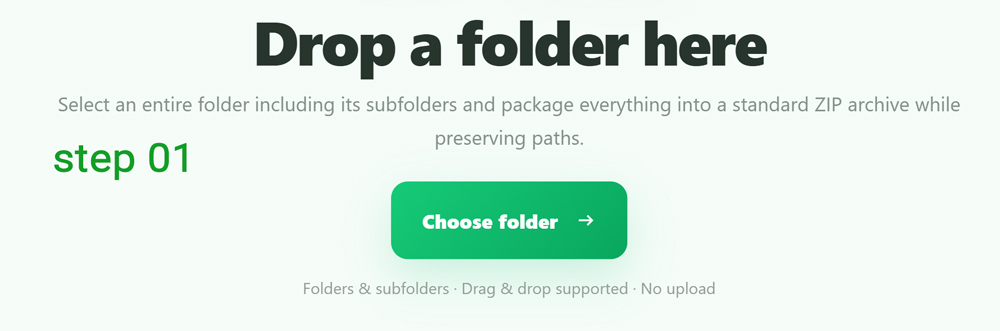
Choose or drop the folder
Click Choose folder to use the browser's folder selector, or drag a folder onto the drop area when your browser exposes directory information through drag and drop.
The current version accepts folders containing up to 10,000 files and up to 600 MB of combined file data.
Let the browser scan files and relative paths
Files selected through the folder picker carry their relative folder paths. For supported folder drag-and-drop, the tool recursively walks directory entries and collects files and known directories.
The folder report is then built from those paths before any ZIP data is created.
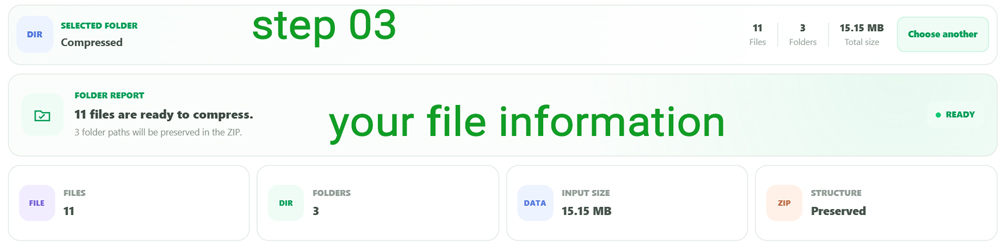
Review the folder report and search file paths
The workspace shows the number of files, detected folder paths and total input size before compression begins.
Use Search files or paths to locate a specific filename or nested directory, and edit the output ZIP name if needed.
Build the ZIP with file-aware compression
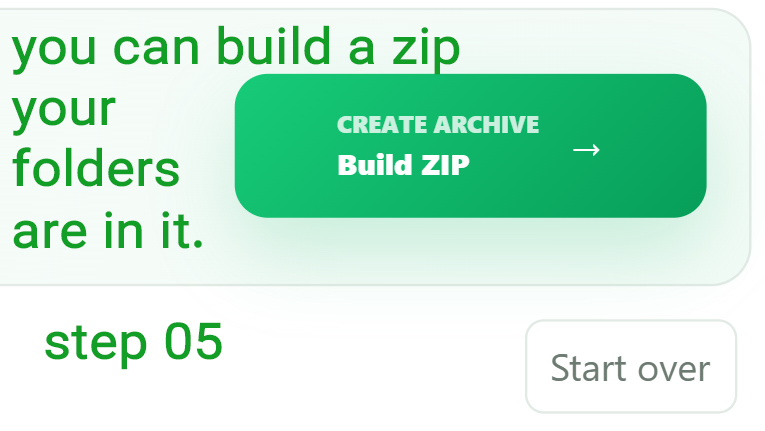
Click Build ZIP. The builder stores formats such as JPG, MP4 and existing archives without compressing them again.
Other file types can use ZIP compression, while the relative paths are retained in the archive.
Download the completed folder ZIP
Once the archive is ready, the result panel displays the final ZIP filename and output size.
Click Download ZIP to save the package while leaving the original folder on your device unchanged.
What does “preserve folder structure” actually mean?
Imagine a selected folder contains
project/assets/logo.svg. The converter keeps that
relative path when it constructs the ZIP instead of storing only
logo.svg at the archive root.
After extraction, the nested hierarchy can therefore be reconstructed much more closely to the original folder organization.
Files define most folder paths, while drag-and-drop can expose empty directories too
There is a small but useful distinction between the two ways a folder can enter the tool.
Directory paths are inferred from selected files
The native folder selection provides relative paths for the files it returns. Parent directories are reconstructed from those paths. A completely empty folder with no file beneath it is therefore not guaranteed to be represented through this path.
Known directory entries can be retained
To include an empty folder, try dragging it onto the tool. Its ZIP entry is kept when your browser provides the folder path.
Not every file benefits from being compressed again
Formats such as JPEG, AVIF, MP3, MP4, PDF and existing archive files often already contain compressed data. Running Deflate over them may spend extra CPU time for very little size reduction.
The current ZIP builder marks a list of common already-compressed formats for storage without another compression pass, while other files use ZIP compression level 6.
Folder paths are cleaned before they become ZIP entry names
../../project/docs/report.pdf
project/docs/report.pdf
Backslashes are normalized, Windows drive prefixes and leading slashes
are removed, and . or .. path components are
excluded before an entry is written into the archive.
A conflicting path does not silently overwrite an earlier file
If two source entries ultimately resolve to the same cleaned archive path, the second filename receives a numbered suffix.
For example, another docs/report.pdf can become
docs/report-2.pdf rather than replacing the file already
assigned to that path.
docs/report.pdf
docs/report.pdf
↓
docs/report-2.pdf
Large folders require enough browser memory to build the ZIP
600 MB input limit
Folder contents above the current 600 MB processing limit are rejected before ZIP creation.
Up to 10,000 files
Folders containing more than 10,000 files are rejected by the current browser workflow.
Browser resources still matter
A folder within those limits can still require significant memory, especially when many large files need to be read before the ZIP is generated.
The folder name becomes a useful starting point for the ZIP name
After a folder is scanned, its root name is used as the initial archive name where possible.
You can edit the name before building the ZIP. Reserved filename characters are cleaned and the editable archive basename is limited to 100 characters.
Folder files are read and packaged in the browser
The browser reads the selected files, creates the archive entries and generates a separate ZIP for download. Building the archive does not rewrite the original files or rearrange the folder on your device.
Questions about creating ZIP files from folders
How do I turn a folder into a ZIP online?
Choose or drop a folder, review its detected files and paths, set the output name, click Build ZIP and download the result.
Are subfolders preserved in the ZIP?
Yes. Relative file paths are used when the ZIP entries are created, so nested folder structure is retained.
Are empty folders preserved?
Known directory entries discovered through supported folder drag-and-drop can be written into the ZIP. With native folder selection, directory paths are primarily inferred from files, so a completely empty directory is not guaranteed to appear.
Can I search files inside the folder before zipping it?
Yes. Search files or paths filters the folder contents shown in the workspace.
What is the maximum folder size?
The current browser-processing limit is 600 MB of combined file data.
How many files can the folder contain?
The current version accepts up to 10,000 files in one folder packaging job.
Does every file use the same ZIP compression?
No. Common already-compressed formats are stored without another compression pass, while other files can use Deflate compression.
What happens if two cleaned file paths conflict?
A numbered suffix is generated so one file does not silently replace the other in the ZIP.
Can I choose the output ZIP name?
Yes. The suggested name can be edited before archive creation.
Does creating the ZIP modify my original folder?
No. A new ZIP is generated separately while the source folder and its files remain unchanged.
Package the complete folder while keeping its file paths organized
Scan the files, check the structure and create one standard ZIP directly in your browser.