A downloaded invoice is easy to find today and surprisingly easy to lose next week. Once you know how to use X-plore File Manager, you can give that document a sensible home, keep the original, and find it again without retracing your downloads.
Start with one practice file. This guide takes you through copying, selecting, renaming, and extracting files before moving on to computer transfers and common problems.
Documentation checked on 2 November 2026. Menu labels and permission screens can vary with the app version, Android release, and device.
Getting Started with X-plore File Manager
After installation, open the app and follow the access prompts for the storage you want to manage. An SD card may need its own write permission. Choose a nonessential PDF in Downloads for your first task.
- Tap a folder to explore it or a file to open it in an available viewer.
- Long-press an item to open its context menu.
- Use an item’s checkbox to select it without opening it.
The folder tree shows where you are. You can customize the button bar, so the instructions below use command names rather than fixed button positions.
Keep a separate backup of irreplaceable files. While learning, use Copy and check the result before removing an original. Read any overwrite prompt carefully, especially when two files share a name.
Understand the Two Panes
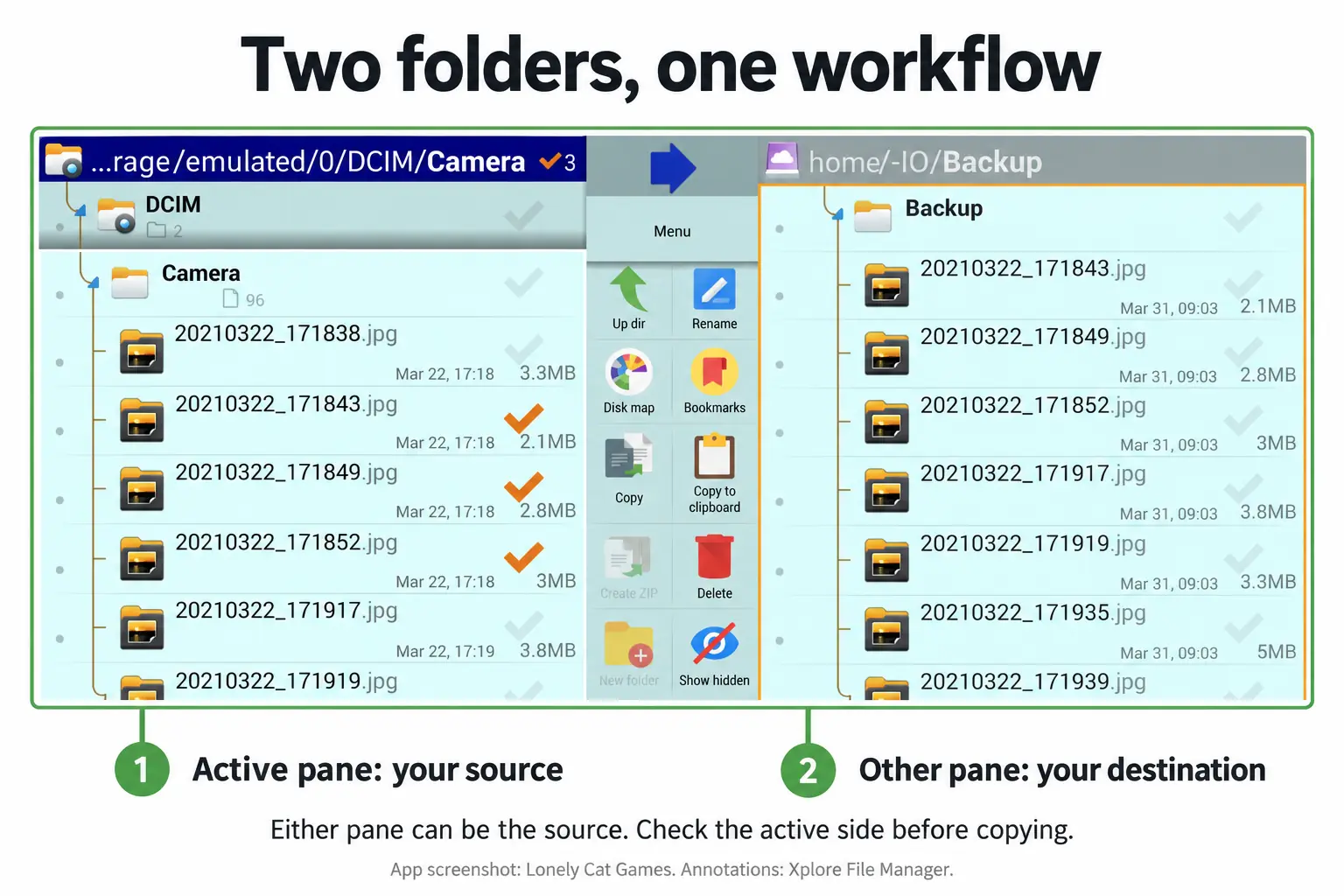
Think of the panes as two folders ready for the same job. The active, highlighted pane is the source. For pane-to-pane copying, the opposite pane supplies the destination. Either side can be active.
For our invoice example, keep Downloads in one pane and Documents in the other. On a narrow screen, only one pane may be visible, but the hidden pane keeps its location. Use Switch pane or swipe horizontally to change sides. Check the destination folder name before confirming a transfer.
Copy an Invoice Without Losing the Original
First, give the copy a home. In the destination pane, long-press Documents, choose New folder, and name it Invoices. Open that new folder.
- Switch to the source pane and open Downloads.
- Select your practice PDF using its checkbox.
- Choose Copy. If you use the button bar, make a short tap; a long press on that button is a shortcut to Move.
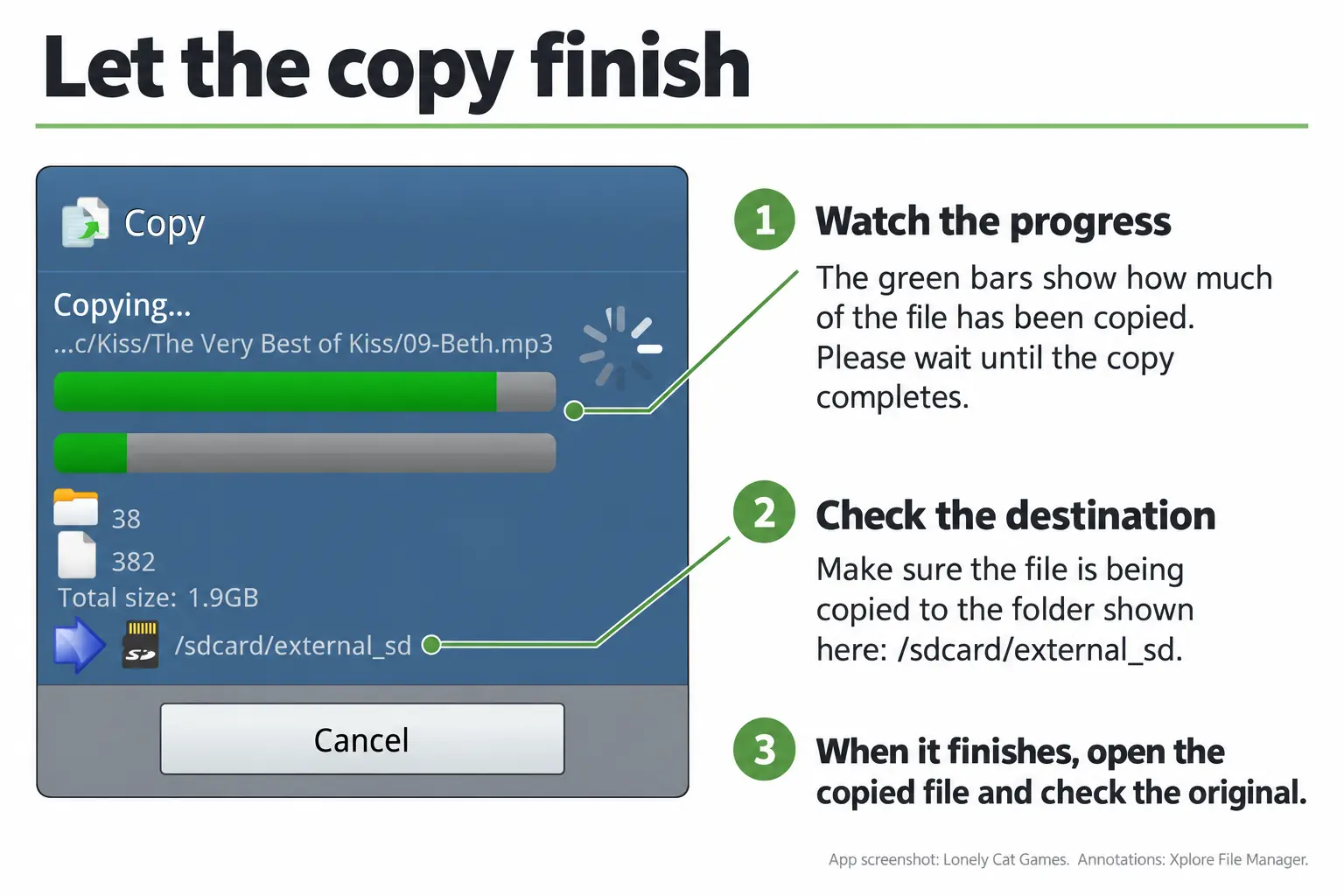
- Check that the confirmation names Documents/Invoices as the destination. Review any replacement prompt before continuing.
- Wait for completion, then open the copied PDF. Check that the original remains in Downloads.
That is the core workflow: prepare the destination, select the source, and check the result.
When to Use Move
Copy keeps the original; Move relocates it. When you are ready to move a file, prepare the same two folders, select the source file, and choose Move. Afterward, open the destination file and confirm that it has left its old folder.
Copy to Clipboard and Paste
Prefer choosing the destination afterward? Use the clipboard workflow:
- Select the file, long-press it, and choose Copy to clipboard.
- Browse to a writable destination folder.
- Choose Paste from the clipboard toolbar at the bottom, confirm, and check the copied file.
The transfer starts when you paste. Clipboard mode also offers Move, so check its setting if you want to keep the original. The official copying and clipboard guide explains both methods and destination restrictions.
Select Multiple Files
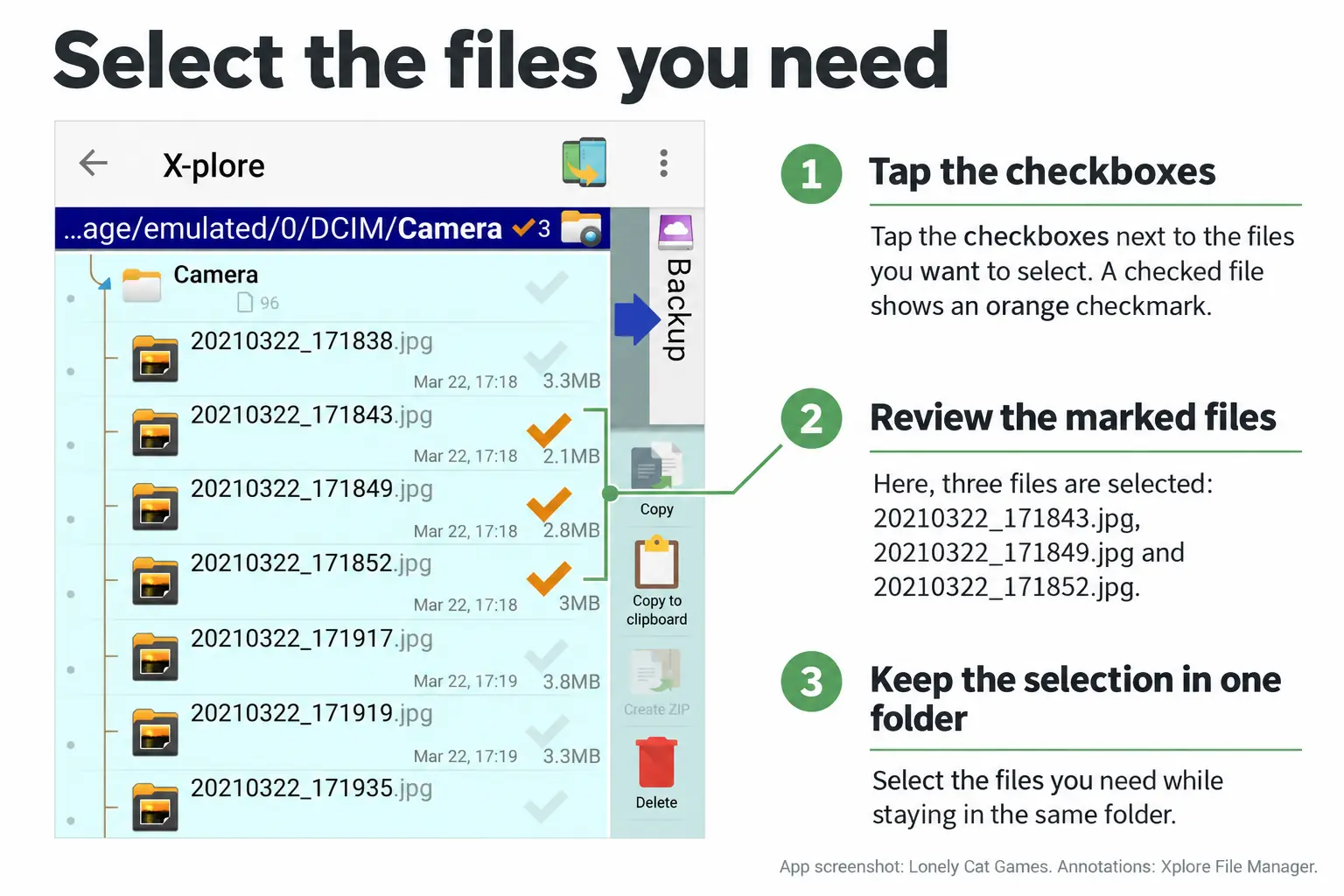
Once one invoice is filed, you can organize a whole month’s documents together. Open Invoices in the destination pane, return to Downloads, and check each PDF you want to copy. Review the selection before choosing Copy.
Keep the selection within one parent folder. Selecting an item at another level of the tree clears the previous selection. Setting the destination first avoids an unnecessary trip away from your selected files.
- Select all in tree view: expand the parent folder. Tap its checkbox once to select the folder, then again to select its contents. A third tap clears the selection.
- Select a range: check the first file, then long-press the checkbox of the last file. The files between them are selected too.
Check the resulting marks, particularly when the folder contains documents you do not want to transfer.
Rename Files and Create Folders
Open your copied invoice in Documents/Invoices. Clear any multi-file selection, long-press that PDF, and choose Rename. A name such as June-invoice.pdf is easier to recognize than a download number.
Keep the original extension where shown. Renaming a PDF to a different extension does not convert its contents.
To add another folder, long-press its intended parent, choose New folder, and enter a name. If the command is unavailable, clear the selection and check that you can write to that location.
Delete Files and Recover Retained Items
Before clearing old downloads, check Recycle bin in Configuration. It covers files deleted through the app from internal storage, not removable memory cards. It is useful for some mistakes, but it does not replace a backup.
- Make sure anything important has another copy.
- Select only the unwanted file and choose Delete.
- Read the filename and confirmation before proceeding.
To restore a retained item, open Recycle bin, long-press it, and choose Recover. The folder appears under Internal storage when enabled and nonempty; check its display setting if it is hidden.
Items are automatically removed after 14 days, and uninstalling the app removes its recycle bin. Read the recycle bin recovery instructions and limits before relying on recovery.
Extract ZIP, RAR, and 7z Files
If an invoice arrives inside an archive, open the archive to browse its contents. You can extract just the document you need.
| Format | What you can do |
|---|---|
| ZIP | Browse, extract, and create ZIP archives. |
| RAR and 7z | Browse and extract supported archives. Use ZIP when creating a new archive. |
- Open an ordinary destination folder in the opposite pane.
- Open the archive in the source pane and select the files you need.
- Choose Copy, check the destination, and confirm.
- Open the extracted documents to check them.
Copying out of an archive performs the extraction. Select all its contents first if you need everything.
Working with a ZIP on your computer instead? Our online unzipper provides a browser-based option for supported ZIP files. It does not decrypt password-protected archives.
Create a ZIP Archive
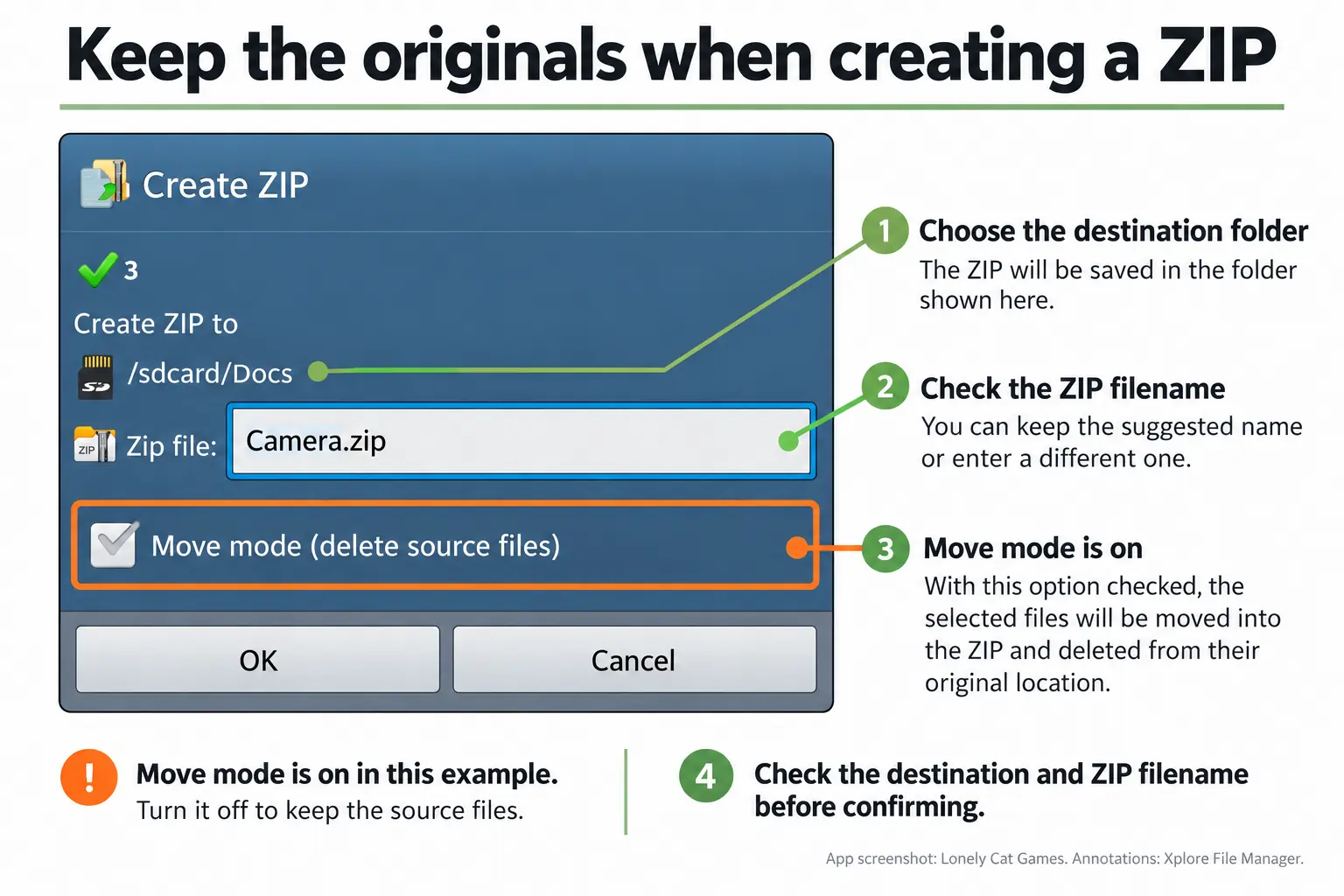
Set a valid destination in the opposite pane, select your source files, and choose Create ZIP. Enter an archive name and confirm. If the command is disabled, recheck the destination.
Keep any option to move files into the ZIP disabled if you want to retain the originals. Open the completed archive and check its contents before deleting source documents.
Transfer Files Between Android and a PC
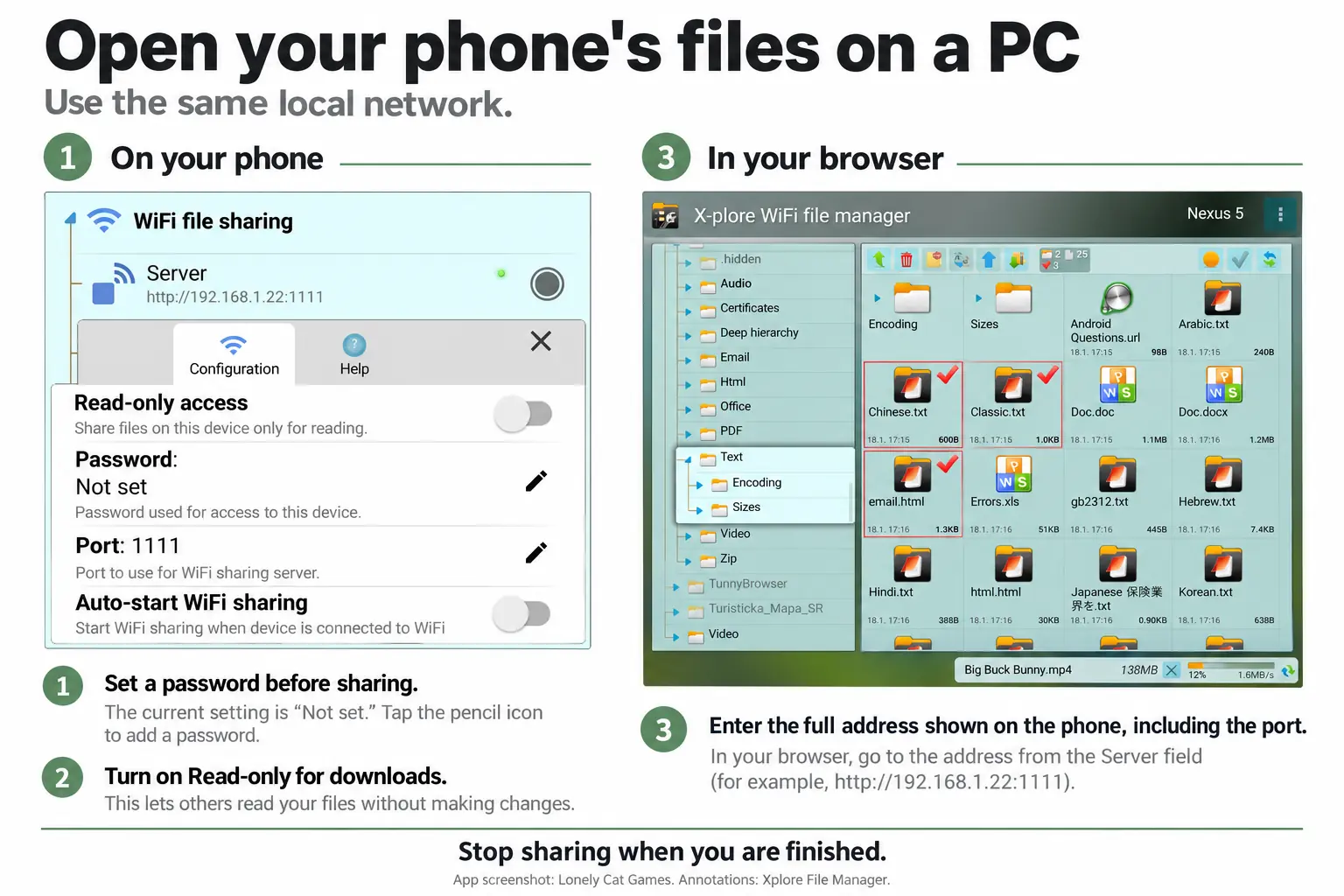
The app’s paid WiFi sharing feature lets a computer browser access a server running on your phone. Both devices need to be on the same local network.
Use a trusted private network. An address beginning with http:// uses an unencrypted browser connection, even with a server password. Full sharing can expose accessible local storage and installed apps, rather than just the folder on screen. Review access before starting.
- Connect the phone to Wi-Fi and the computer to the same local network.
- Open WiFi file sharing, then tap the topmost Server item to configure it.
- Set a password. Keep Read-only access enabled for downloading; allow writing only when you need uploads or changes. Leave Auto-start WiFi sharing off for occasional transfers.
- Start the server using the button beside Server.
- Enter the complete displayed address, including its port, in the computer’s browser. Supply the password and download a small test file.
- When finished, open the WiFi Server entry and choose Stop. The browser interface also offers Exit.
You can also share selected files or folders through a separate read-only option. The WiFi sharing settings and access controls explain the difference.
Connect Cloud Storage and Network Folders
Local file management needs no cloud account. If you use OneDrive, Dropbox, or Google Drive, connect the supported account, review its requested access, and try one small transfer first.
The default Google Drive connection shows files created through X-plore. An older file missing from this view has not necessarily been deleted. The Google Drive access guide describes this limitation and an advanced setup for broader access.
For other connections, SMB opens network shares, while FTP and FTPS connect to file servers. SFTP uses SSH and requires a paid unlock. Your server account’s permissions still control what you can read or change.
Fix Common File Management Problems
The SD Card Opens, but Files Will Not Copy to It
Viewing a card and writing to it require different access. Follow the app’s storage prompt and select the intended card in Android’s folder picker. Then try a small copy before a large transfer.
Copy or Paste Is Disabled
Choose a writable destination different from the source. A folder cannot be copied into its own child folder. For clipboard mode, use Copy to clipboard first. If a transfer begins but fails, check free space, the connection, and remote permissions.
The PC Browser Cannot Connect
Check that the server is running and both devices share the same local network. Match the full address and port shown on the phone. Recheck the password if access is refused. If downloads work but uploads fail, check Read-only access.
Android/data or Android/obb Will Not Open
Android restricts these folders, with behavior varying by release, manufacturer, and system components. Check the Android/data and Android/obb access guidance. A file manager cannot guarantee access to every protected folder.
Free Features, Paid Extras, and Installation
You can use the app for free, with ads and in-app purchases. Premium functions include WiFi sharing, PC browser access, SFTP, and Vault. Ad removal and the full feature unlock are different purchase levels, so check the current in-app options before buying.
If an earlier purchase is missing, confirm which level you bought and check the Google account used for payment before paying again.
Need to install it? Download X-plore File Manager on Google Play and check that the developer is Lonely Cat Games.
Put the Workflow to Use
Start with the invoice example: create its folder, copy the document, open the result, and give the copy a useful name. Once that feels familiar, repeat it with several files or an archive.
For tasks that suit a browser, explore our Xplore File Manager online tools. The website brings practical guides and online utilities together, giving you a browser-based complement to the Android app.
Published by Xplore File Manager, an independent resource for file-management guides and online tools. The Android app is developed by Lonely Cat Games; this website is not affiliated with the developer.
Frequently Asked Questions
Do I Need Root for Ordinary File Management?
No. Browsing and organizing ordinary user files does not require root. Protected system areas need separate access and are outside this basic workflow.
Where Is the Paste Button?
Choose Copy to clipboard, then open a valid destination. Paste appears in the clipboard toolbar at the bottom. Pane-to-pane Copy uses the two prepared folders directly.
Why Did My Previous Selection Disappear?
Multiple selection stays within one parent folder. Selecting an item at another level of the tree clears it. Prepare your destination first, then select the source files together.
Does Renaming a File Change Its Format?
No. Changing the name or extension leaves the underlying data unchanged. Use a suitable conversion tool when you need a different format.