Open a TAR.GZ archive, browse what is inside and extract only what you need
A TAR.GZ file combines two different jobs: TAR organizes files and directories into an archive, while GZIP compresses that TAR data into a smaller stream.
The extractor above handles both layers. It first decompresses the GZIP stream, then reads the resulting TAR archive so its regular files and folder paths can be displayed individually.
After extraction, you can search the archive, download one file at a time or package all extracted files into a convenient ZIP while retaining their paths.
This archive extractor is part of Xplore File Manager, a collection of browser-based file utilities designed to let you inspect and work with real file structures instead of hiding every step behind a generic conversion button.
How to extract a TAR.GZ or TGZ file online
The archive passes through two stages before its files can be shown: GZIP decompression followed by TAR parsing.
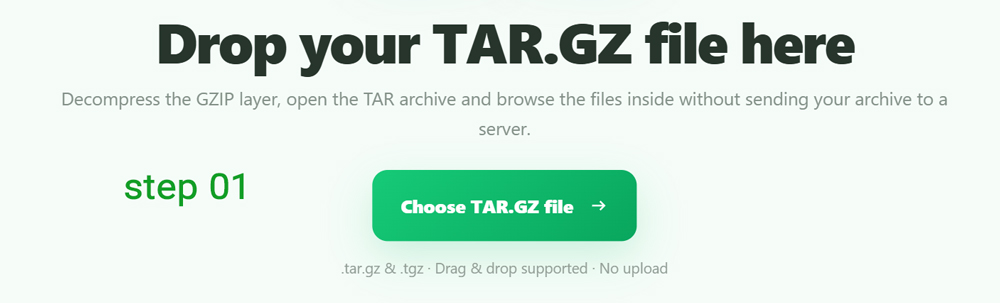
Choose the TAR.GZ or TGZ archive
Click Choose TAR.GZ file or drag a .tar.gz or .tgz archive onto the drop area.
The current browser workflow accepts compressed archives up to
300 MB. A normal standalone
.gz file belongs in the separate GZIP Extractor.
The GZIP layer is decompressed first
TAR.GZ is not a single archive layer. The tool first verifies that the selected file contains a recognizable GZIP stream and then decompresses it to recover the TAR data inside.
To reduce the chance of exhausting browser memory, the current workflow rejects a TAR payload expected to expand beyond 750 MB.
Browse the extracted files, folders and paths
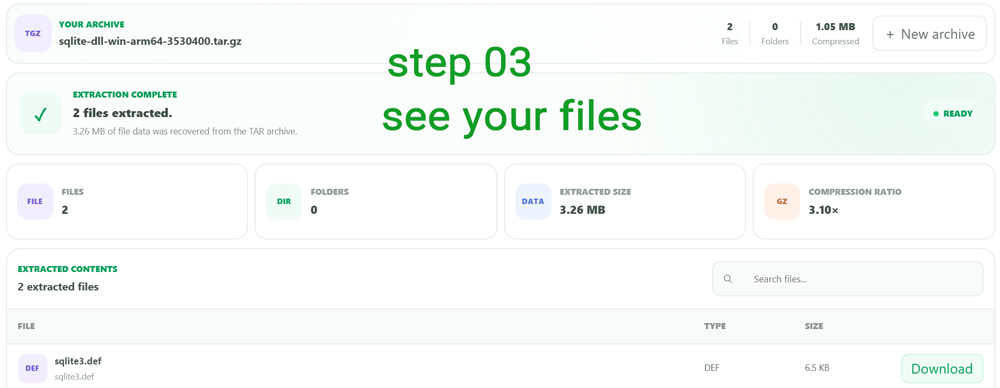
Once the TAR has been parsed, the workspace reports how many regular files and folder paths were found, the original compressed size, extracted file-data size and the extracted-to-compressed size ratio.
Use Search files to filter the extracted list by path. Each row includes the filename, archive path, detected type, size and its own Download button.
Download one file or prepare the complete archive
If you only need a single document, image or configuration file, use the Download button beside that entry.
When you need everything, click Create ZIP bundle. The extracted regular files are placed into a new ZIP using their cleaned archive paths.
Download all extracted files as ZIP
After the ZIP bundle has been generated, the result panel shows its final filename and output size.
Click Download ZIP to save the complete extracted set in one archive.

What is a TAR.GZ file?
A TAR archive groups files and directories together. A GZIP stream then compresses that TAR archive.
That is why the extension often contains two parts:
.tar.gz. The shorter .tgz extension
normally represents the same general combination.
A TAR.GZ archive and a normal GZIP file are not the same job
| Feature | TAR.GZ / TGZ | Standard .GZ |
|---|---|---|
| Compressed layer | GZIP | GZIP |
| Content after decompression | TAR archive | Usually one original file/stream |
| Can contain many archive files? | Yes, through TAR | Not as a TAR directory tree by itself |
| Tool to use here | TAR.GZ Extractor | GZIP Extractor |
The parser understands common ways TAR stores longer paths
Classic TAR headers have limited space for filenames. Real archives may therefore use extensions such as GNU Long Name records or PAX headers.
The extractor recognizes those records and can use PAX
path data or GNU long-name data when determining the
path of a regular file.
The visible file list focuses on regular files and directories
TAR can describe more than ordinary files, so it is useful to know what this browser extractor turns into downloadable entries.
Downloadable
Standard TAR regular-file entries are exposed in the extracted file list with their data, path, type and size.
Used for structure
Explicit directories and parent folders inferred from file paths are included in the folder report.
Not exposed as a regular file
The current parser does not turn every TAR-specific special entry type into a normal downloadable file.
You do not have to download the entire archive again
Once extraction is finished, each regular file is already represented separately in the browser workspace.
That makes this useful when you only need one file from a large archive. Search its path, locate the entry and download that single file instead of creating the complete ZIP bundle.
The optional ZIP is built after the TAR.GZ has already been extracted
The ZIP button is a download convenience feature. It does not simply rename the original TAR.GZ.
Clean archive paths
Extracted paths are normalized before being added to the ZIP, including removal of parent-directory traversal components.
Conflicting paths get unique names
If two extracted entries resolve to the same ZIP path, a numbered suffix is generated rather than silently replacing the first file.
File-aware ZIP packaging
Common already-compressed formats can be stored without another Deflate pass while other files use ZIP compression.
The compressed size is not the same as the size after decompression
A relatively small TAR.GZ can expand into a much larger TAR. The tool checks both the compressed input size and the estimated or actual decompressed TAR size.
The current limits are designed around reliable in-browser processing, where the decompressed archive must fit in available browser memory.
The selected TAR.GZ is decompressed and parsed in your browser
The archive is read from your device, the GZIP stream is decompressed and the TAR entries are parsed in browser memory. Individual files and the optional ZIP bundle are then generated from that local extraction state.
Questions about opening TAR.GZ and TGZ archives
How do I extract a TAR.GZ file online?
Choose or drop the TAR.GZ file, wait for the GZIP layer and TAR structure to be processed, then download individual files or create a ZIP bundle of the extracted contents.
Does this tool support .tgz files?
Yes. The current extractor accepts both .tar.gz and .tgz filenames.
Can I browse the archive before downloading files?
Yes. The extracted list shows filenames, paths, detected types and file sizes.
Can I download only one file from TAR.GZ?
Yes. Every regular file shown in the list has its own Download action.
Can I download everything at once?
Yes. Create ZIP bundle packages the extracted regular files into a new ZIP and keeps their cleaned archive paths.
Does the ZIP bundle just rename TAR.GZ to ZIP?
No. The TAR.GZ is first decompressed and parsed. The ZIP is then newly built from the extracted file data.
Does it support long TAR filenames?
The current TAR parser supports GNU long-name records and PAX path information.
What is the maximum TAR.GZ input size?
The current compressed input limit is 300 MB.
What if the archive expands to a very large TAR?
The current workflow rejects an estimated or actual TAR payload above 750 MB to reduce browser-memory problems.
Does extracting the archive modify the original TAR.GZ?
No. The source archive remains unchanged and extracted downloads are created separately.
Open the compressed archive and extract the files you actually need
Browse the TAR contents, download one file or package everything into a ZIP.