Open a CSV file and turn raw rows into a table you can actually explore
CSV files are simple, portable and useful, but opening one as plain text can quickly become difficult when the file contains dozens of columns or thousands of values.
The CSV viewer above reads the file and organizes its contents into a searchable table. You can inspect rows and columns, search across the dataset, sort individual columns, move through large tables with pagination and export the current view when you have narrowed the data down to what you need.
This browser-based data viewer is part of Xplore File Manager, where file tools are built around practical tasks such as opening, inspecting, searching and extracting useful information without making the workflow more complicated than it needs to be.
How to open and view a CSV file online
You do not need to convert the CSV before viewing it. Open the original file, let the viewer organize the values into columns and then use the table controls to find the rows you need.
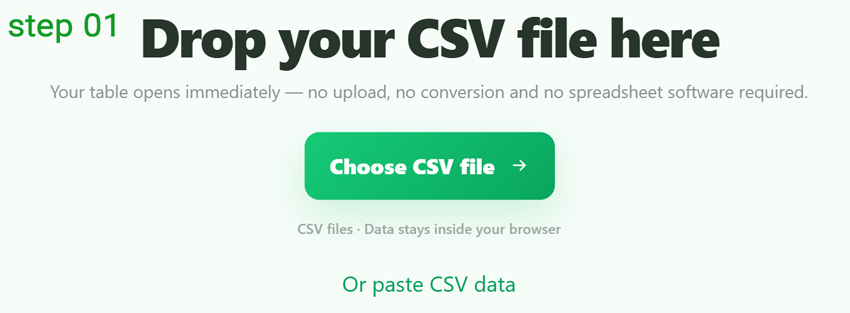
Choose the CSV file you want to inspect
Click Choose CSV file and select the .csv file from your device. You can also drag the file directly onto the upload area.
The current viewer accepts CSV files up to 25 MB. The file is read in your browser before the table is created.
Let the viewer identify how the CSV is separated
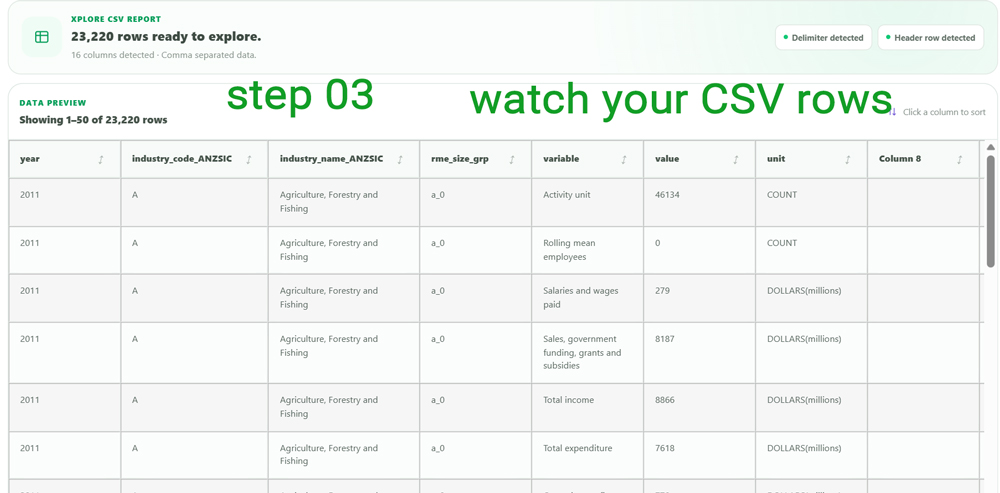
Not every CSV-like dataset uses a comma between values. The viewer checks the data and chooses between common separators: comma, semicolon, tab and pipe.
Once the delimiter is selected, the first parsed row becomes the column-header row and the remaining records are organized beneath those headers.
Search the CSV and sort the columns you care about
Type into Search across all rows to look for a value anywhere in the table. The search checks the cells in each row, so you do not need to choose one column before searching.
Click a column heading to sort it. Click again to reverse the order, and once more to remove the sort. Values that look numeric are compared numerically when possible, while other values use text-aware sorting.
Move through large CSV tables without loading one endless page
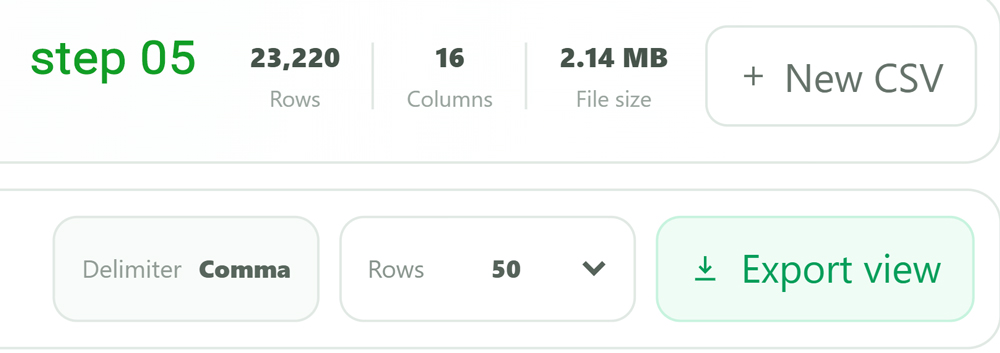
Use the row selector to display 25, 50, 100 or 250 rows at a time. The pagination controls let you move to the first, previous, next or last page of the current result set.
If a search is active, pagination automatically works with the matching rows instead of the complete dataset.
Export the current CSV view
After searching or sorting the table, click Export view to create a CSV containing the current result set.
The viewer keeps the detected delimiter when rebuilding the exported CSV and correctly quotes values when they contain a delimiter, quotation marks or line breaks. Your original CSV is still available separately through Download original CSV.
What is a CSV file?
CSV is short for Comma-Separated Values. It is a plain-text format commonly used to store tabular data where each record forms a row and the values inside that record are separated into fields.
A simple CSV might contain columns for a name, email address and country. More complex files can contain thousands of records exported from analytics platforms, ecommerce systems, databases, accounting software or spreadsheets.
Although the name says “comma-separated,” real-world data is also commonly distributed with semicolons, tabs or other delimiters. That is why delimiter handling matters when opening a CSV file.
Name,Email,Country
Alex,alex@example.com,USA
Sam,sam@example.com,Canada
Mia,mia@example.com,Germany
Need to inspect a CSV without opening spreadsheet software?
Sometimes you do not need formulas, charts or a full spreadsheet editor. You only need to see what the CSV contains and locate a few useful records.
Check a data export
Preview an exported CSV before importing it into another service or application.
Find one record quickly
Search across the rows when you need to locate a customer, product, ID, email address or other value.
Check column structure
Confirm which headers and fields exist before mapping the file into another database or application.
Extract a smaller view
Search the dataset and export the matching result set as another CSV file.
Comma, semicolon, tab or pipe: the separator changes how the table is read
The delimiter tells a CSV parser where one field ends and the next begins. If the wrong delimiter is used, an entire row may appear as one long value instead of several useful columns.
This viewer samples the data and compares several common delimiter candidates before parsing the complete table.
"London, United Kingdom"
one field
ESCAPED QUOTE
"She said ""Hello"""
quotation preserved
Commas inside quoted values should not create extra columns
Real CSV data is not always as simple as value,value,value. A field can contain the same character used as the delimiter, and text can contain quotation marks or even line breaks.
The parser tracks quoted fields while reading the file. Escaped double quotes are interpreted as part of the value instead of being mistaken for the end of the field.
The first CSV row becomes the table header
After parsing, the first row is used to name the table columns. If a header cell is empty, the viewer creates a fallback name such as Column 1 or Column 2.
Duplicate column names are also adjusted so each displayed header can be distinguished from the others.
Name,Email,Email,
Search across every row instead of scanning the table manually
The search is not limited to the currently visible page. Each row is checked for the search text across all of its cells, and only the matching rows remain in the result set.
That makes it useful for finding a specific name, identifier, location, email address, product code or any other text stored inside the CSV.
Sort text and numeric-looking values directly from the column header
Clicking a column cycles through ascending order, descending order and the unsorted view.
When values can be interpreted as numbers, the viewer compares them numerically. Otherwise it falls back to text sorting, including natural handling of values that contain numbers.
Turn the rows you found into a new CSV file
Searching a large file is useful on its own, but sometimes you want to keep the smaller result. Export view rebuilds a CSV from the headers and rows in the current filtered or sorted view.
The export keeps the active delimiter and escapes cells when needed so delimiters, quotation marks and line breaks can remain valid CSV values.
A CSV table may look like a spreadsheet, but the file is much simpler
Displaying CSV data in rows and columns does not turn the file into an Excel workbook. CSV stores values in plain text rather than a full spreadsheet document.
| Feature | CSV | Spreadsheet workbook |
|---|---|---|
| Primary structure | Plain-text rows and fields | Workbook, sheets and cells |
| Delimiter | Separates fields | Not used as the main cell structure |
| Formatting | Normally not stored | Can include rich cell formatting |
| Formulas | Normally treated as field content | Can contain spreadsheet formulas |
| Typical use | Data exchange and exports | Interactive spreadsheet work |
Your CSV is read and processed inside your browser
File reading, delimiter detection, CSV parsing, searching, sorting and table rendering are performed in the browser. Opening a CSV does not rewrite the original file on your device.
If you export the current view, the result is created as a separate CSV. You can also download the original data again from the workspace.
Questions about opening and viewing CSV files online
How do I open a CSV file online?
Choose the CSV file in the viewer above or drag it onto the upload area. The viewer reads the file, detects a delimiter and displays the parsed records as a table.
Can I view a CSV file without Excel?
Yes. This viewer is intended for inspecting CSV data directly in the browser when you do not need a full spreadsheet application.
Can I paste CSV data instead of uploading a file?
Yes. Choose the Paste CSV data option and paste the dataset directly into the text area before selecting View CSV.
Which CSV delimiters can the viewer detect?
The current delimiter detector compares comma, semicolon, tab and pipe separators and selects the best match for the supplied data.
Can it open a semicolon-separated CSV file?
Yes. Semicolon is one of the delimiters checked automatically by the viewer.
Can it view tab-separated or pipe-separated data?
Yes. The delimiter detection logic also checks tab and pipe separators in addition to comma and semicolon.
How are CSV column names created?
The first parsed row is used as the header row. Empty header cells receive fallback names such as Column 1, while duplicate names are numbered so they remain distinguishable.
Can I search all CSV rows?
Yes. The search checks the cells across the dataset and returns rows containing the search text.
Can I sort CSV columns?
Yes. Click a column heading to switch between ascending, descending and unsorted states.
How many rows can I display at once?
The viewer currently provides page-size options for 25, 50, 100 and 250 rows.
Can I export only the rows that match my search?
Yes. After filtering the data, use Export view to create a new CSV from the current result set.
Does the CSV parser support quoted values?
Yes. The parser tracks quoted fields and understands escaped double quotes, so a delimiter or line break inside a quoted field is not automatically treated as a new column or record.
What is the maximum CSV file size?
The current viewer accepts files up to 25 MB. Files above that limit are rejected before parsing.
Does viewing a CSV change the original file?
No. Searching, sorting and paginating affect the browser view. Export view creates a separate output while the original CSV remains unchanged.
Open your CSV and find the rows you actually need
View the table, search across the data, sort the important columns and export the result when you are done.