Rename a whole batch without losing track of what each file will become
To number scanned pages, use the pattern scan-{n}.{ext}, start at 1 and select three digits. Preview scan-001.pdf and the rest of the sequence before downloading.
The Batch File Renamer applies one naming system to all selected files and shows the old and new names side by side before you download anything. You can combine search and replace, prefixes, suffixes, numbering, filename case and custom patterns instead of performing several separate rename passes.
The actual file contents are not rewritten. The tool creates new download names for the selected files and can package them together in a ZIP when you are finished.
This bulk renaming workflow is part of Xplore File Manager, where file tools are designed around previewing the result before you commit to a batch download.
How to rename multiple files at once
Start with the files, build the rule, check the preview and only then download the renamed copies.
Select the files you want to rename
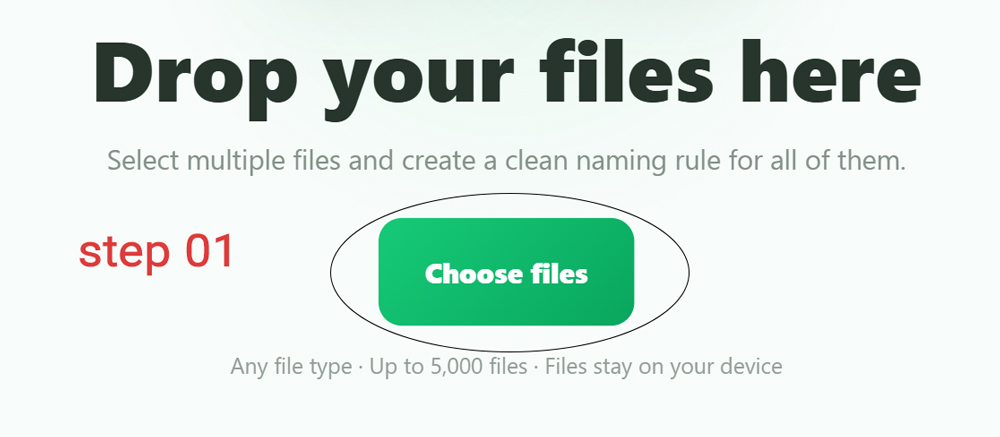
Click Choose files or drop a batch onto the renamer. The tool accepts any file type and currently allows up to 5,000 files in one session.
File size does not change how the naming rules work. The selected files remain the originals until you explicitly download a renamed copy or create the final ZIP.
Clean the existing name before building the final pattern
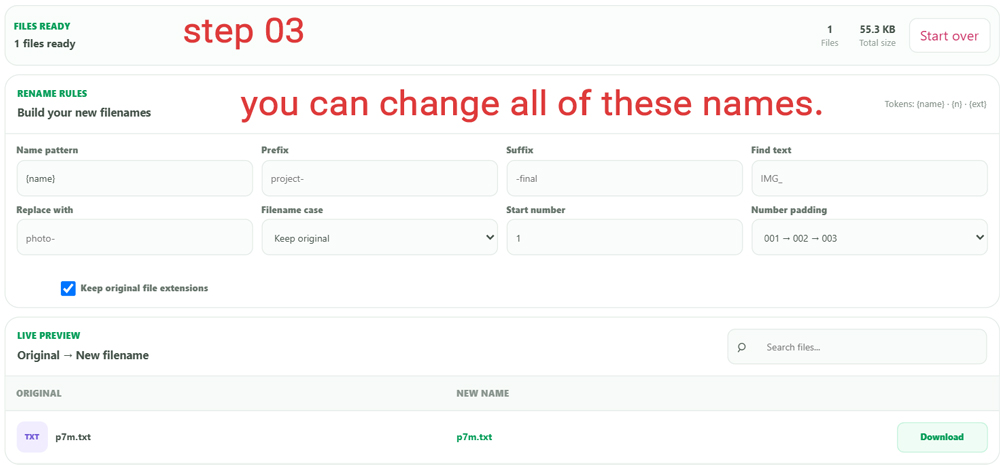
Use Find text and Replace with when several filenames contain the same unwanted text. The replacement is applied to the base name, not to the extension.
You can then change the resulting base name to lowercase, UPPERCASE or Title Case and add an optional prefix and suffix.
Build the final filename with pattern tokens and numbering
The main pattern understands {name},
{n} and {ext}.
Choose the starting number and whether it should appear as
1, 01, 001 or
0001.
For example,
project-{n} with three-digit padding produces names
such as project-001.jpg,
project-002.jpg and
project-003.jpg.
Check extensions and duplicate names before exporting
With Keep original file extensions enabled, the
existing extension is appended automatically unless the pattern
already contains {ext}.
If two generated names would be identical, collision protection
keeps them separate by adding
-2, -3 and so on before the extension.
The duplicate check is case-insensitive.
The preview/search interface can display the first 1,000 matching files, even though the batch itself may contain up to 5,000.
Download one renamed file or export the whole batch
Every visible row has its own Download button, so you can save one file under its new name without creating an archive.
For the complete batch, choose
Download All as ZIP. The current bulk ZIP limit
is 650 MB of selected file data and the archive
is downloaded as renamed-files.zip.
A pattern becomes much more useful when it can reuse the original filename
{name} inserts the processed base filename,
{n} inserts the padded sequence number and
{ext} inserts the original extension without the dot.
That means you can reorganize names without having to replace the useful part of every filename manually.
archive-{n}-{name}
↓
archive-001-budget
archive-002-invoice
archive-003-notes
The filename changes; the file itself does not get re-encoded
File content stays intact
A PDF remains the same PDF, an image remains the same image and an archive is not recompressed merely because its filename changed.
The browser receives the new filename
Individual downloads use the original File object with the generated name you approved in the preview.
ZIP collects those original file bytes
The batch archive uses the generated filenames as ZIP entries without transforming the contents of the files.
Characters that commonly break filenames are cleaned before download
Generated names are cleaned of characters such as
\ / : * ? " < > | and control characters.
Repeated whitespace is normalized and trailing spaces or dots are
removed.
A generated name is currently limited to 220 characters. If a rule
somehow produces an empty name, the tool falls back to a numbered
file-... name.
Your source files are not renamed on disk by the webpage
The browser keeps references to the files you selected, calculates new names locally and only applies those names to the copies you download. The originals on your device remain where they were with their original filenames.
Common questions about renaming files in bulk
How many files can I rename at once?
The current tool accepts up to 5,000 files in one batch.
Can I add automatic numbers to filenames?
Yes. Use the {n} token and choose a starting number plus one- to four-digit padding.
Can I keep the original file extensions?
Yes. Keep original file extensions is enabled by default. You can also place {ext} explicitly in your pattern.
What happens if two new filenames are identical?
Collision protection adds -2, -3 and later numbers until the generated filename is unique within the batch.
Does the renamer change the contents of my files?
No. Renaming changes the download filename, not the bytes inside the selected file.
Can I search the rename preview?
Yes. Search matches both the original filename and its generated new name.
Why do I only see part of a very large batch?
The current preview renders up to 1,000 matching rows at once even though as many as 5,000 files can be loaded.
What is the ZIP size limit?
Creating one renamed ZIP is currently limited to 650 MB. Individual renamed downloads remain available when the batch is larger.
Build the naming rule once and inspect the whole batch before downloading
Select the files, combine the rules you need and use the live preview to catch mistakes before creating the renamed archive.