Optimize a folder of images with one consistent set of settings
Image compression is rarely difficult one file at a time. The tedious part is repeating the same quality, size and output settings across an entire batch and then checking whether the result was actually smaller.
The compressor above processes JPG, PNG and WebP images together. You can choose a quality level, limit the longest image dimension and either keep each source format or convert the whole batch to JPEG, PNG or WebP.
After processing, every row shows the original size, optimized size, resulting dimensions and percentage saved so you can judge the result instead of assuming that every recompression must be better.
The batch image optimizer is part of Xplore File Manager, where browser-based image and file utilities focus on showing the actual output before you save it.
How to compress multiple images at once
Choose the batch, decide how aggressively you want to resize or re-encode it, then compare the result before downloading.
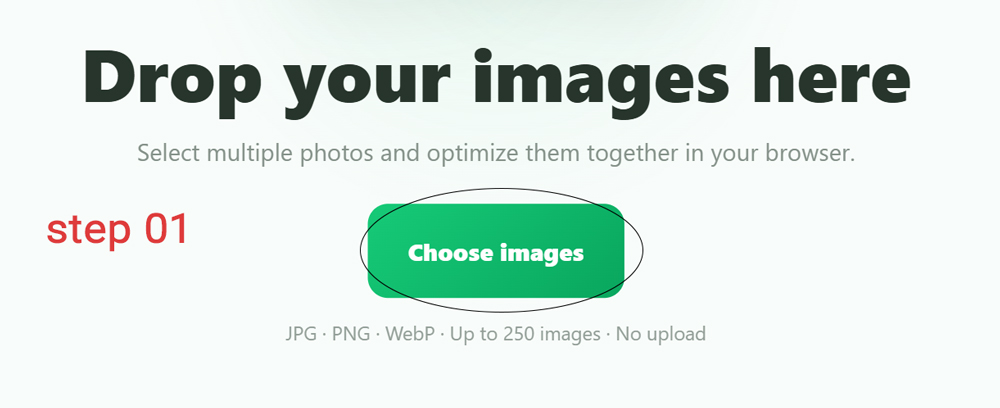
Choose your JPG, PNG or WebP images
Click Choose images or drop multiple images onto the compressor. Unsupported file types are ignored.
The current batch limit is 250 images with a combined source size of up to 700 MB.
Choose quality, maximum dimensions and the output format
Quality can be adjusted from 40% to 95%, with 80% used initially. You can keep the original dimensions or cap the longest side at 4000, 2500, 1920 or 1280 pixels.
Keep original format preserves the source image type, while the other options convert every result to WebP, JPEG or PNG.
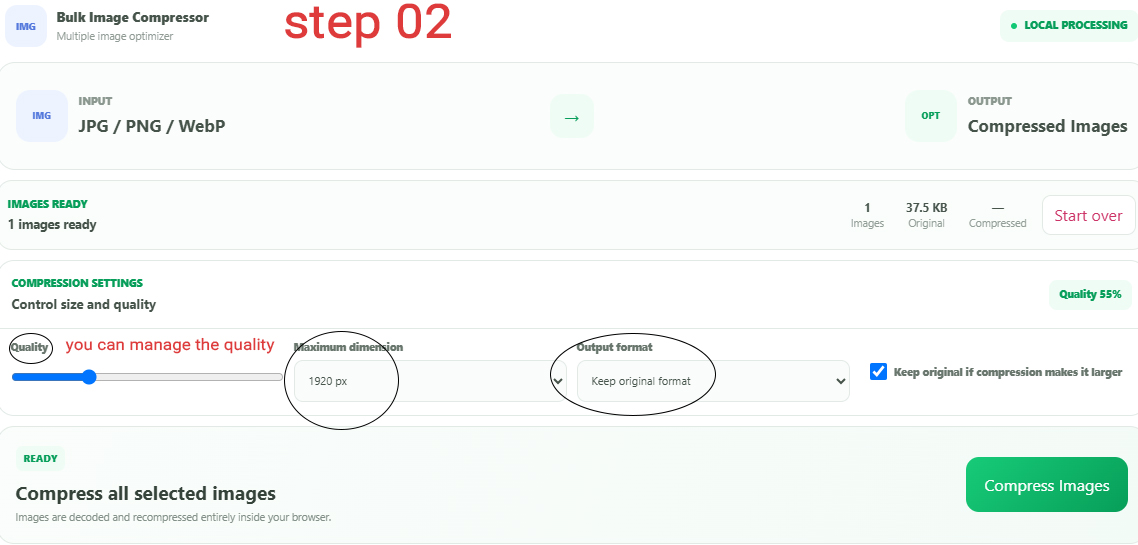
Understand what the maximum-dimension setting actually does
The tool does not enlarge smaller images. Resizing only happens when the longest side is larger than the maximum you selected.
The other dimension is scaled proportionally, so a landscape, portrait or square image keeps its original aspect ratio.
Use “Keep original if compression makes it larger” as a safety net
This option is enabled by default. If the browser re-encodes an image into the same format and same dimensions but the new file is not smaller, the original file is used instead.
It does not replace a result with the original when you requested a resize or format conversion, because those operations intentionally change the output.
Compare before and after sizes, then download the results
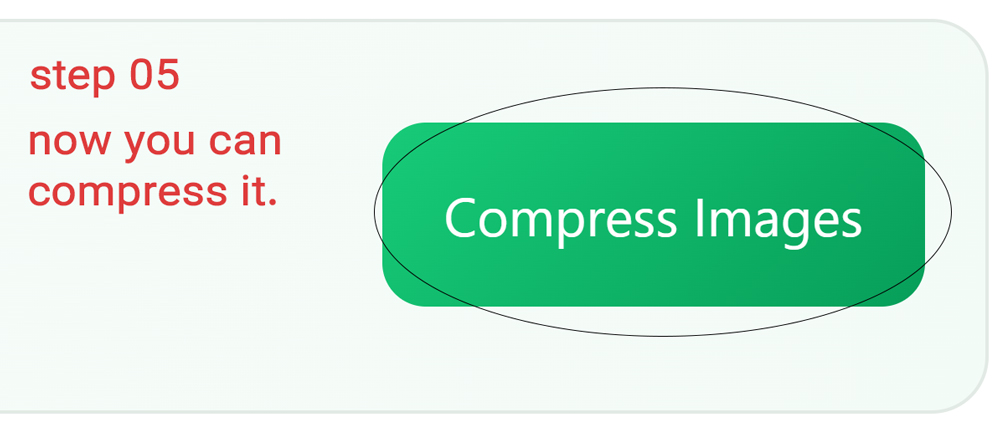
Click Compress Images. The results table shows the output dimensions plus Before, After and Saving values for each file, together with the total saving for the batch.
Download images one by one or use
Download All as ZIP. The batch ZIP is available
when the optimized outputs total no more than
600 MB and is saved as
compressed-images.zip.
The image is decoded, optionally resized and then encoded again
Each selected image is decoded by the browser and drawn onto a canvas at the calculated output dimensions. The canvas then creates the selected JPG, PNG or WebP result.
Because this is a real re-encode rather than a simple filename change, the image data can change even when the visual result looks almost identical.
Transparent pixels become white when the output format is JPEG
JPEG does not provide the alpha transparency used by PNG and some WebP images. When JPEG is selected, this compressor deliberately paints a white background before drawing the source image. If transparency matters, keep PNG/WebP or choose another output format that supports it.
The new extension follows the format you actually selected
The source basename is kept, unsafe filename characters are cleaned
and -compressed is added before the resulting extension.
For example, converting
holiday-photo.png to WebP produces
holiday-photo-compressed.webp.
Re-encoding focuses on image pixels rather than copying source metadata
Metadata is not copied back into the new canvas image
EXIF and other source metadata are not deliberately transferred to a newly encoded result.
The untouched source may still be returned
If “keep original if larger” triggers, the output is the original File object rather than a newly encoded copy, so that case is different from a normal recompression.
Keep output filenames unique when downloading one ZIP
Batch ZIP entries use the generated output filename. If two different
source files have the same basename and both are converted to the same
output format, they can produce the same
-compressed filename. Using distinct source basenames is
the safest approach for a mixed-format batch.
Image decoding and compression are performed inside the browser
The selected image files are decoded locally, processed through the browser canvas and turned into downloadable blobs. The source images on your device are not overwritten.
Questions about compressing multiple images
Which image formats can I compress?
The current tool accepts JPG/JPEG, PNG and WebP files.
How many images can I process at once?
Up to 250 images with a combined source size of 700 MB.
Does resizing stretch my images?
No. Width and height are scaled by the same factor so the original aspect ratio is maintained.
Will small images be enlarged to 1920 pixels?
No. The maximum dimension acts as a ceiling. Smaller images are not enlarged.
Can I convert PNG or JPG images to WebP while compressing them?
Yes. Choose WebP as the output format and the batch will be encoded as WebP rather than keeping each original format.
What happens to PNG transparency if I choose JPEG?
The JPEG encoder receives the image on a white canvas, so transparent regions become white.
What if compression makes a file larger?
When the safety option is enabled and the format and dimensions have not changed, the original file is kept if the re-encoded version would be the same size or larger.
Can I download all optimized images together?
Yes. Download All as ZIP works while the optimized outputs total no more than 600 MB.
Compress the complete batch, then judge the result from the actual before-and-after numbers
Choose the quality, dimensions and output format once and apply the same workflow to every selected image.