Don't extract everything just to find one file.
A ZIP archive is basically a box of files. Sometimes you want the whole box opened. Other times, you're only looking for one photo, one document or one folder buried somewhere inside it.
Xplore's Online Unzipper is built for both situations. You can open the archive, move through its folders, search for a filename, download a single file, or extract everything when you actually need it.
How to unzip a file online with Xplore
You don't need to install an archive app first. Start with the ZIP file you already have and work through it from there.
Drop in the ZIP file you want to open.
Drag your archive onto the tool above, or click Choose ZIP file and select it from your device. Before trying to open the archive, Xplore checks that the file actually looks like a ZIP.
That sounds like a small detail, but it's useful when a file has
simply been renamed to .zip even though the data inside
belongs to another format.

Browse the archive like a little file manager.
Once the ZIP opens, you aren't dropped into a giant flat list. Folders stay folders. Click one to go inside, use the breadcrumb trail to move back, and keep exploring until you reach what you're looking for.
This is especially useful when somebody sends you a large project archive and you have no idea where the useful file is stored.
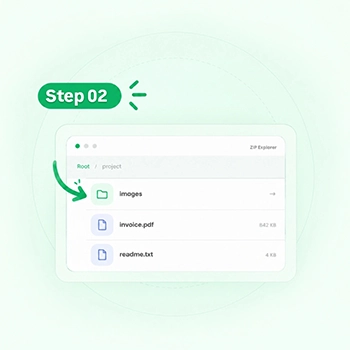
Search instead of digging through every folder.
If you already know part of the filename, use Search inside ZIP. The search isn't limited to the folder you're currently viewing — it can help you find a file elsewhere in the archive too.
Search for something memorable such as
invoice, logo or .pdf,
then download the result directly when it appears.
Download only the file you need.
Every file in the explorer has its own download button. Use it when extracting the entire archive would only create unnecessary clutter on your device.
For example, if a ZIP contains 300 images and you only need
cover-final.jpg, there is no reason to extract
the other 299 first.
Or extract the entire archive at once.
Need everything? Hit Extract all. On supported browsers such as current versions of Chrome and Edge, Xplore can ask you to choose a destination folder and write the extracted files there while preserving the archive's folder structure.
If your browser doesn't support direct folder access, the archive browser still works. You can continue moving through folders and downloading individual files normally.

Treat a ZIP like a folder, not a mystery box.
What you do after opening the archive should depend on what you're actually trying to get out of it.
You need one file
Browse or search for it, then use the download button beside that file. Leave the rest of the archive alone.
Best for documents, images and individual project files.You need one folder
Open the archive, navigate into that folder and inspect what it contains before deciding which files to save.
Useful when archives contain several unrelated folders.You need everything
Use Extract All and choose a destination folder when your browser supports direct folder extraction.
Best for complete projects, backups and file collections.Imagine someone sends you a 600 MB ZIP.
Inside it are product photos, invoices, spreadsheets, old drafts and a folder full of files you don't care about. The only thing you need is the final PDF invoice.
The usual approach is to extract all 600 MB and then start looking. With the archive browser, you can open the ZIP first, search "invoice", download the PDF and move on.
That's the part of an online unzipper that's genuinely useful: seeing what you have before deciding what to unpack.
The archive can stay on your side of the screen.
This Online Unzipper is designed to read and decompress the ZIP inside your browser. The archive doesn't need to be intentionally uploaded to Xplore's server just so you can inspect its contents.
That also explains why the power of the device matters. When you open a very large ZIP, your browser needs enough available memory to read and decompress what you ask for.
Not every archive fails for the same reason.
If Xplore stops before showing the file browser, these are the first things worth checking.
The ZIP is password protected
The current version doesn't decrypt encrypted ZIP archives. A protected archive needs its password and an extractor that supports that encryption method.
The archive is damaged
If part of the ZIP is missing or corrupted, the browser may not be able to build a valid file list. Download the original archive again if possible.
It uses an unsupported compression method
ZIP is a container that can use different compression methods. Some unusual archives may use a method the current browser extractor can't decode.
The archive is extremely large
Browser extraction relies on available device memory. A ZIP that works comfortably on a desktop computer may put much more pressure on a phone or low-memory device.
Sometimes an unzipper is more than you actually need.
When you want the files out
Browse the ZIP, find files, download individual items or extract the whole archive.
Best for extractionWhen you mainly want to inspect it
If your main goal is simply to view ZIP contents online and understand what's inside before taking action, the dedicated viewer is the cleaner choice.
Best for inspectionQuestions worth answering before you unzip.
Can I open a ZIP without extracting every file?
Yes. After the archive opens, Xplore displays its folders and files in the built-in explorer. You can browse around and download a single file without extracting everything else first.
Can I search for a file inside the ZIP?
Yes. Use the search field after opening the archive. It's useful when you know part of a filename but don't know which folder contains it.
Does Xplore preserve folders when extracting everything?
When direct folder extraction is available in the browser, the tool recreates the archive's folder structure inside the destination folder you choose.
Why does Extract All behave differently in some browsers?
Directly writing many extracted files into a folder requires browser access to the local file system. Current Chromium-based browsers such as Chrome and Edge support the API used by this tool, while some other browsers don't. Individual file downloads still work.
Can this tool open a password-protected ZIP?
Not in the current version. Encrypted ZIP archives aren't decrypted, guessed or bypassed by the Online Unzipper.
Do I need WinZip, WinRAR or another desktop app?
No. For supported ZIP archives, the file browser and extraction process run through your web browser, so a separate desktop archive program isn't required.
Can opening a very large ZIP use a lot of memory?
Yes. Browser-based extraction still has to decompress file data. Very large archives or very large individual files can require significant memory, particularly on phones and low-memory devices.
Open the ZIP first. Decide what you need second.
Browse folders, search for a filename, save one file or extract the complete archive. The choice stays with you.
Open a ZIP file