Open a RAR file online. See what's actually inside.
A RAR archive can hide hundreds of files behind a single filename. Sometimes you need everything inside it. Sometimes you only need one image, one document or one configuration file.
Xplore's RAR Viewer is built for that second situation. Instead of blindly extracting the entire archive, you can inspect its structure, search for a file, check compression details and preview supported contents first.
How to open a RAR file online
You do not need to understand archive compression to use the viewer. The important information appears only when it becomes useful.
Select the RAR file you want to open.
Drag your archive onto the tool or click Select RAR file and choose it from your device.
Xplore first checks the actual archive signature rather than
trusting the filename alone. A random file renamed to
.rar is therefore not treated as a valid RAR archive.

Let Xplore read the RAR archive first.
Before extracting individual files, the viewer reads the archive header and builds a manifest of what the RAR contains.
This is how the Command Center can show filenames, folders, compressed sizes and archive properties without immediately unpacking every file.
Browse RAR files and folders like a file manager.
The Archive Manifest keeps the original folder structure visible. Expand a folder to explore its contents or collapse it when you no longer need it.
This is especially useful for software packages, backups, website projects and other RAR files containing deep directory structures.

Search inside a RAR file without extracting everything.
If you already know what you need, use the search field instead of opening folder after folder.
Search can match filenames, directory paths or extensions.
Try terms such as invoice, .jpg,
config or .pdf.
Use All Files for large RAR archives.
Folder structure is useful until it isn't. Switch to All files when you simply want one flat list containing every file inside the archive.
Large lists and search results are divided into pages instead of forcing hundreds of entries into a single endlessly scrolling panel.
Inspect compression details for any file.
Select a file and the right side becomes its File Passport.
Instead of showing only a filename, Xplore can expose details such as its original size, packed size, compression saving, compression method, modification date, CRC information and encryption state.
That makes the viewer useful not only for opening a RAR, but also for understanding how the archive was built.
Preview files inside the RAR archive.
The Live Inspector only decompresses the individual entry needed for the preview instead of intentionally unpacking the whole archive at once.
Depending on the file and browser, Xplore can preview common images, plain text, JSON, source code, PDFs, audio and video.
Unknown binary formats are still useful to inspect: the viewer can show a small hexadecimal sample rather than ending the experience with a blank “unsupported” screen.
{
  "tool": "xplore",
  "archive": "rar",
  "ready": true
}
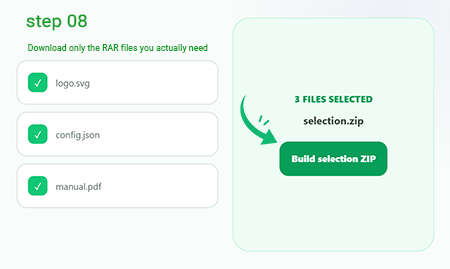
Download only the RAR files you actually need.
Once you find the right file, use the Download action to decompress and save that individual entry.
If several files matter, select their checkboxes instead. Xplore can extract those entries and package the selection as a new ZIP while keeping their archive paths.
This is useful when a huge RAR contains only a handful of files relevant to you.
How to open RAR files without WinRAR
A RAR file is commonly associated with WinRAR, but installing a desktop archive manager is not always necessary when your goal is simply to inspect an archive or retrieve a few files from it.
With Xplore, the archive decoder runs inside the browser through WebAssembly. That gives the viewer access to the RAR structure without turning the page into a remote desktop application or requiring WinRAR to be installed on your computer.
This can be particularly convenient on a Chromebook, work computer or another device where installing additional software is inconvenient.
How to open a password-protected RAR file
If the archive requires a password, Xplore does not ask for it before it is needed.
When the RAR engine encounters protected headers or an encrypted file, the Command Center displays an unlock panel. Enter the password you already have and the viewer can retry the operation.
The RAR Viewer is not designed to guess, brute-force, crack or bypass archive passwords.
RAR4 vs RAR5: what does the RAR Viewer detect?
You normally do not need to know which RAR generation created your archive. The viewer checks the archive signature and displays the detected version for you.
Older RAR archives
The viewer recognizes the classic RAR archive signature and can process supported files using the same Archive Manifest workflow.
Newer RAR archives
Modern RAR files are detected separately so the Command Center can identify the archive generation before you begin exploring its contents.
RAR Viewer vs RAR Extractor: which one do you need?
The two jobs overlap, but the intent is different.
You want to look first.
Use a RAR viewer when you want to browse the archive, inspect filenames, search folders or preview individual contents before deciding what to save.
Browse → inspect → decideYou want a more compatible archive.
If the problem is that another app or website does not accept RAR, you can convert RAR to ZIP online instead of browsing it file by file.
Convert → download → shareWhat files can you view inside a RAR archive?
Preview availability depends on the file format and browser, but Archive Inspector is designed around the types people most commonly need to check quickly.
Images
Common image formats such as JPG, PNG, WebP and GIF can be displayed directly in the inspector.
Text & source code
JSON, TXT, CSV, HTML, CSS, JavaScript, PHP, Python and many other text-based files can be read line by line.
PDF files
Where supported by the browser, PDFs can be displayed directly inside the inspector.
Audio & video
Browser-supported media files can use the browser's native playback controls.
Binary files
Unsupported visual formats can still expose a short hexadecimal sample for technical inspection.
File metadata
Packed size, original size, compression method, CRC, date and encryption status remain useful even when visual preview is not.
Why won't my RAR file open?
A failed archive does not always mean the viewer is broken. Several things can prevent a RAR file from being opened correctly.
The file is not really a RAR archive
Renaming another file to .rar changes its filename, not its underlying format. Xplore checks the RAR signature before opening it.
The RAR archive is damaged
Missing or corrupted archive data can prevent the decoder from reading headers or decompressing particular entries.
It is part of a multi-part RAR
Archives split across multiple volumes require all parts and special volume handling. The current Xplore browser engine does not support multi-volume RAR sets.
The archive needs a password
Protected headers or encrypted files cannot be decoded correctly until the valid archive password is supplied.
Your device is running out of memory
Browser-based archive processing uses your device's available memory. Very large compressed files can therefore be harder to work with on phones or low-memory devices.
Inspect RAR files directly in your browser.
This viewer is designed so archive parsing and decompression take place on your device instead of intentionally sending your RAR to Xplore's server for the viewing operation.
RAR Viewer is one part of Xplore File Manager , a collection of focused online tools for opening, viewing, converting and managing everyday file formats.
Frequently asked questions about opening RAR files
How do I open a RAR file online?
Select or drag your .rar file into the viewer. Xplore reads the archive structure, builds its folder and file list, and lets you inspect individual entries from the browser.
Can I open a RAR file without WinRAR?
Yes. The Xplore RAR Viewer uses an in-browser archive decoder, so WinRAR does not need to be installed simply to inspect and retrieve supported files from the archive.
Can I view a RAR file without extracting everything?
Yes. The viewer lists the archive contents first. Individual supported files are decompressed when you request a preview or download rather than automatically extracting the entire RAR.
Can I open password-protected RAR files?
The viewer can request a password when protected archive data requires one. You must provide the correct password yourself; Xplore does not guess or crack archive passwords.
Does the RAR Viewer support RAR4 and RAR5?
The current viewer recognizes RAR4 and RAR5 archive signatures and displays the detected archive generation in the Command Center.
Can I search for a file inside a RAR?
Yes. Search checks paths throughout the archive, making it useful for locating filenames and extensions inside large directory structures.
Can I download one file from a RAR archive?
Yes. Select the file, inspect it and use Download to save that individual entry without intentionally extracting every other file in the archive.
Can I turn selected RAR files into ZIP?
Yes. Select multiple entries and the Command Center can package those extracted files into a new ZIP. If you want to convert the complete archive instead, use the dedicated RAR to ZIP tool.
Why can't Xplore open my multi-part RAR file?
Multi-volume RAR archives are split across multiple related files and require volume-aware decoding. The browser engine currently used by this viewer does not support those archive sets.
Is there a file size limit for RAR Viewer?
The practical limit depends on available browser and device memory. Xplore also avoids automatically decompressing an individual file larger than roughly 30 MB merely to generate a preview, helping prevent unnecessary memory usage.
Don't extract blindly. Look inside first.
Open the archive, understand its structure, inspect the files and download only what you came for.
Open a RAR file