Put multiple JPG images into one ZIP without changing the photos
When dozens of JPG images need to be sent, stored or downloaded together, creating one ZIP is usually cleaner than handling every photo separately.
The JPG to ZIP tool above packages the original JPG and JPEG files into a single archive. It does not resize the images, lower JPEG quality or decode and re-encode the photos before adding them to the ZIP.
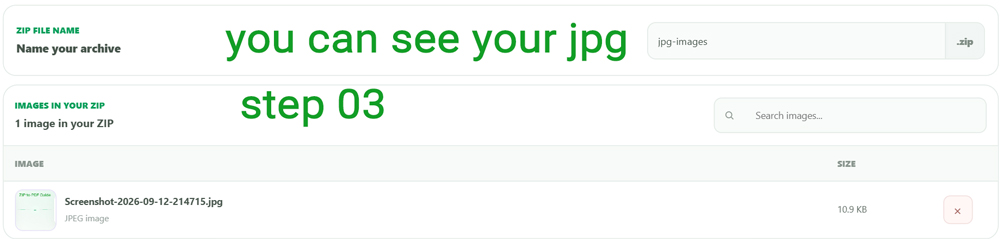
You can add more images, remove files you do not want, search the list, choose the ZIP filename and review the image count and total input size before building the archive.
This image packaging tool is part of Xplore File Manager, where browser-based utilities are designed to solve practical file tasks without adding unnecessary format changes to the files you started with.
How to create a ZIP file from JPG images
Add the photos, review exactly what will be placed inside the archive and then build one downloadable ZIP.
Choose your JPG and JPEG images
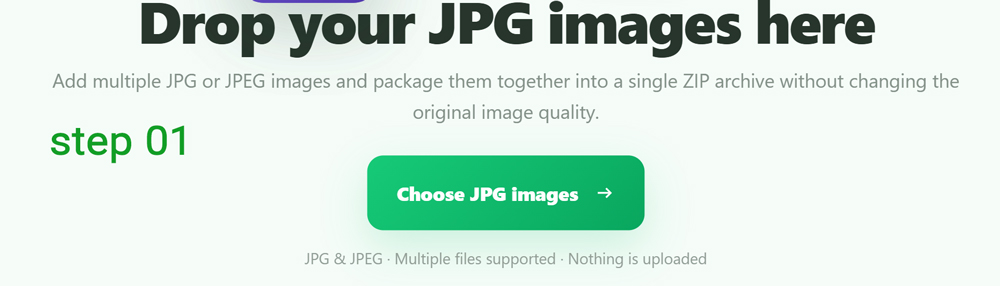
Click Choose JPG images or drag your photos onto the upload area. Multiple images can be selected at the same time.
The current version supports up to 500 JPG/JPEG images with a combined input size of up to 500 MB.
Add more photos or remove images you do not need
The workspace is not locked after your first selection. Add more lets you expand the batch, while individual images can be removed before the archive is created.
When the same file is selected again with the same filename, size and modification time, the converter recognizes that fingerprint and avoids adding another identical entry.
Review the image list and choose the ZIP filename
Before building the archive, check the number of selected images and their combined size. Use Search images when you need to find a particular filename in a larger batch.
You can also replace the default
jpg-images.zip name with your own archive name
before creating the ZIP.
Package the original JPEG data instead of re-encoding it
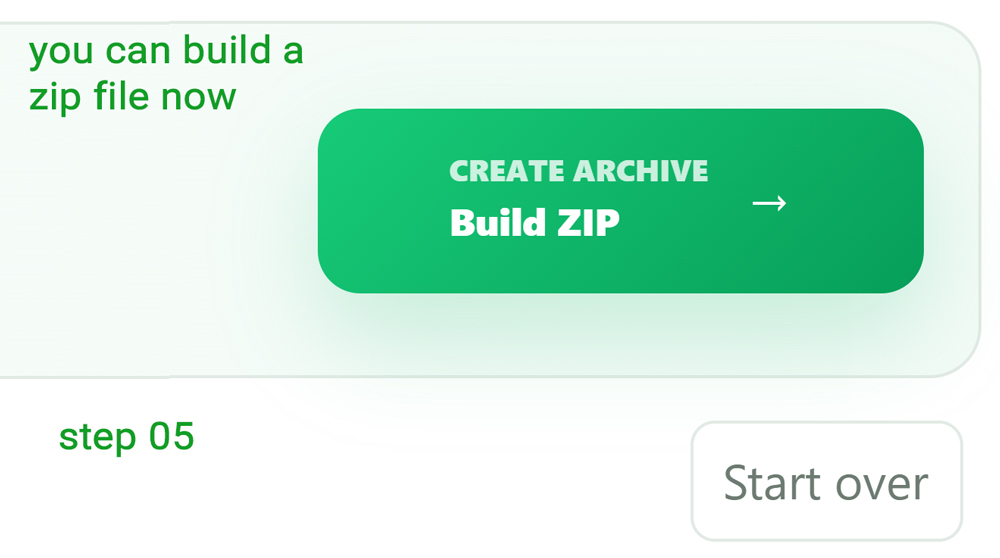
Click Build ZIP. JPG is already a compressed image format, so trying to compress the JPEG image stream again usually provides little benefit.
This tool therefore stores the original image bytes in the ZIP rather than converting or recompressing the photographs.
Download the finished JPG ZIP archive
When packaging finishes, the result panel shows the ZIP filename, number of images included and output size.
Click Download ZIP to save the complete image archive.
JPG to ZIP does not convert your images into another image format
A ZIP is a container. The files inside this archive are still ordinary .jpg or .jpeg images.
Opening the ZIP later gives you those image files again. Their pixel dimensions, JPEG encoding and visual quality are not intentionally changed by the packaging process.
Why packaging JPG files does not need another JPEG compression pass
No resize
The images are not resized to smaller dimensions before they enter the archive.
No quality slider
No new JPEG quality setting is applied because the image itself is not re-encoded.
Stored as original image data
Each JPG is read as bytes and placed in the ZIP using Store rather than another compression pass.
Do not expect a JPG ZIP to make your photos dramatically smaller
JPEG already uses image compression. In this tool the JPEG entries are deliberately stored without another ZIP compression pass.
The main purpose is therefore packaging and organization: many separate photos become one downloadable archive. If your actual goal is to reduce image file sizes, image compression is a different operation.
What happens when two different images have the same filename?
photo.jpg
photo.jpg
→
photo.jpg + photo-2.jpg
Different source images can occasionally share the same basename. Instead of allowing one ZIP entry to silently replace another, the packaging logic generates a numbered filename for the duplicate name.
Give the archive a useful name before downloading it
The default archive name is jpg-images.zip, but it can
be changed directly in the workspace.
Characters that are unsuitable for common filenames—such as slashes, colons and several reserved symbols—are replaced before the download name is generated.
The selected JPG files are packaged inside your browser
Image files are read from your local selection and used to construct the ZIP in browser memory. The original JPG files on your device remain unchanged while a separate ZIP result is generated.
Questions about putting JPG images into a ZIP
How do I convert JPG images to ZIP?
Choose multiple JPG or JPEG files, review the batch, name the archive, click Build ZIP and download the result.
Does JPG to ZIP reduce image quality?
This tool does not resize or re-encode the JPG images. Their original file bytes are placed into the ZIP.
Does ZIP make JPG images much smaller?
Usually not in this workflow. JPEG data is already compressed and this tool deliberately stores JPG entries without another compression pass.
How many JPG files can I add?
The current version packages up to 500 JPG or JPEG images at once.
What is the maximum total image size?
The combined selected images must stay within the current 500 MB browser-processing limit.
Can I remove an image before creating the ZIP?
Yes. Individual files can be removed from the image list before Build ZIP is used.
Can I add more JPG files after the first selection?
Yes. Use Add more to expand the current batch.
What happens if two images have the same filename?
The ZIP builder generates a unique numbered filename, such as photo-2.jpg, so both different images can remain in the archive.
Can I choose the ZIP filename?
Yes. The archive name can be edited before the ZIP is created.
Are my original JPG files modified?
No. The ZIP is generated as a separate file and the original images remain unchanged.
Put your JPG images into one clean downloadable archive
Add the photos, review the batch and package the original image data without changing JPEG quality.