EPUB Reader Online
Read an EPUB in your browser.
Use the table of contents to jump to a chapter. Change the text size or theme and bookmark the place you want to return to.
Drop your EPUB book here
Open a book, jump through its table of contents and tune the page for comfortable reading.
Choose EPUB file Drag & drop also works.Opening your book…
Checking the EPUB package and preparing the reader.
- Table of contents
- Reading themes
- Saved reading progress
- Keyboard & mobile navigation
Open EPUB files online and read ebooks like a real book
An EPUB is more than a collection of text files. A properly built ebook can contain chapters, navigation, cover artwork, metadata, images and a reading structure designed to adapt to different screen sizes.
The EPUB reader above opens the book directly in a dedicated reading workspace where you can browse its chapters, turn pages, change the reading theme, adjust text size and line spacing, add bookmarks and continue from a previously saved reading position.
How to open and read an EPUB file online
The reader handles the technical EPUB package for you. Your job is simply to choose the book, navigate to the section you want and adjust the reading experience to suit you.
Choose your EPUB book
Click Choose EPUB file in the reader above and select the .epub ebook you want to open. You can also drag the file directly onto the upload area.
The reader checks the EPUB package before opening it. This helps identify files that were simply renamed to .epub or do not contain the expected EPUB structure.
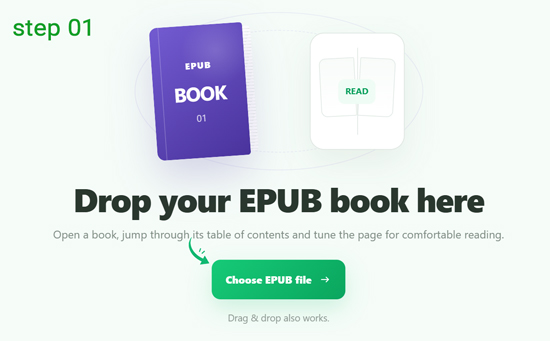
Wait while the EPUB package is prepared
After selection, the reader checks the EPUB package and reads available information such as the book title, author, language, cover and navigation structure.
When the book provides a table of contents, its chapters are prepared for quick navigation inside the reader.
Browse chapters and start reading
Once the book opens, use the Chapters panel to move through its table of contents. If the ebook has many chapters, use the chapter search field to find one by name.
You can also use the previous and next controls to move through the EPUB page by page. The reader keeps the current chapter and reading progress visible while you read.
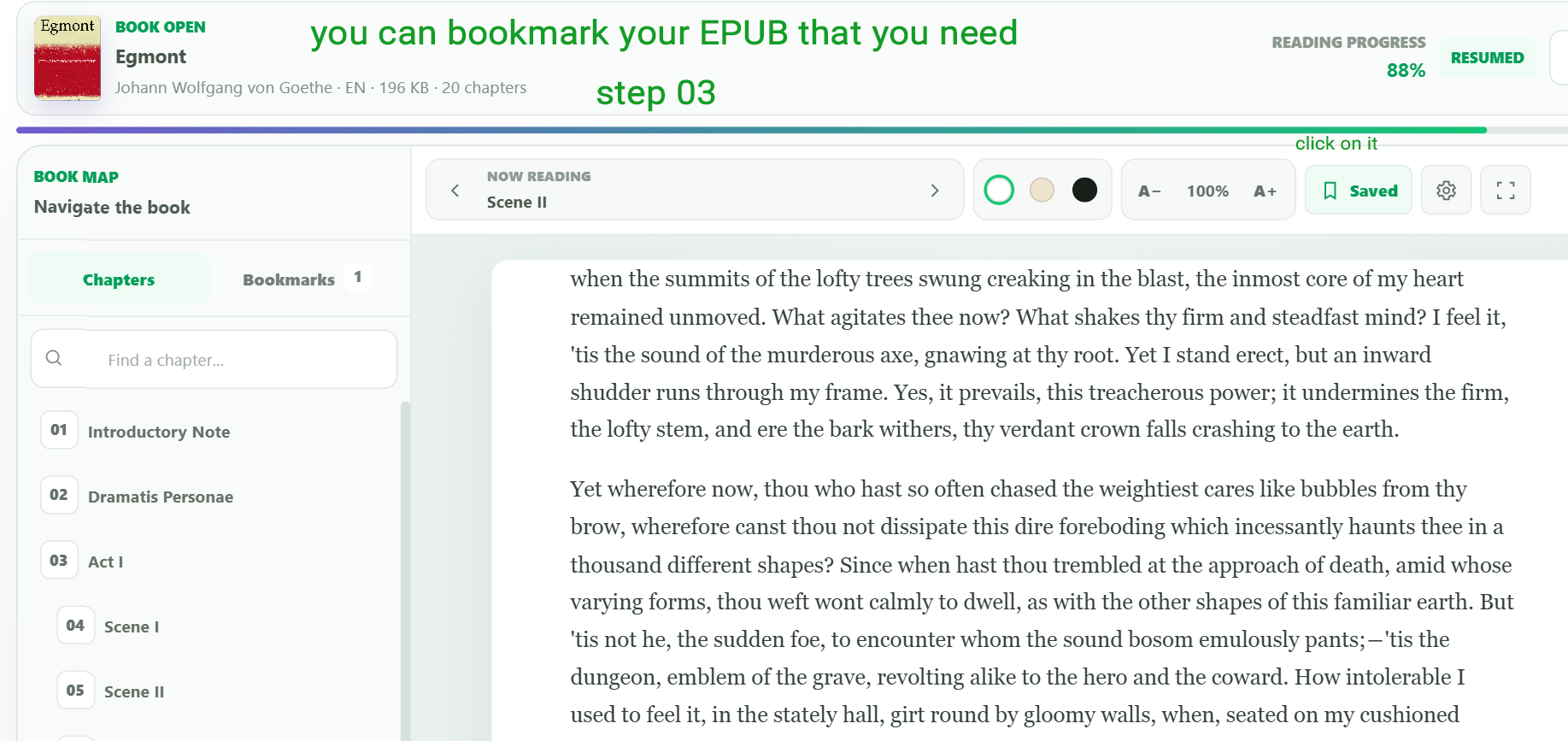
Adjust the page for comfortable reading
Choose between Paper, Sepia and Night reading themes. You can also increase or decrease the text size and choose Compact, Comfort or Relaxed line spacing.
Books that are easier to read in the opposite direction can also switch between Left → Right and Right → Left navigation.
Bookmark a reading spot and continue later
Click Bookmark when you reach a place you want to save. Saved reading spots appear in the Bookmarks panel so you can return to them without searching through the entire ebook.
The reader also remembers your current reading position locally. When the same book is opened again from the same browser storage, it can return to the saved position and show the RESUMED status.
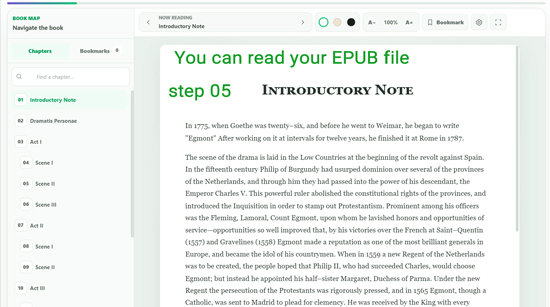
This online ebook reader is part of Xplore File Manager.
What is an EPUB file?
EPUB is an ebook format designed for digital reading. Unlike a fixed screenshot of a printed page, EPUB content can often adapt to the reader's screen and reading preferences.
An EPUB package can contain book chapters, HTML-based text, styles, images, navigation information, metadata and cover artwork. A proper EPUB reader interprets those pieces and presents them as a structured ebook.
More than an EPUB viewer: a browser-based reading workspace
Opening an ebook is only useful if the reader also gives you a practical way to navigate and read it. The workspace includes several controls intended for longer reading sessions.
Table of contents
Browse the chapter structure provided by the EPUB and jump directly to an available chapter.
Chapter search
Search the book's table of contents when a long EPUB contains too many chapters to scan manually.
Reading progress
Follow the current reading percentage and a visual progress bar as you move through the ebook.
Bookmarks
Save specific reading locations and reopen those saved spots from the Bookmarks panel.
Paper, Sepia & Night
Switch the page appearance to suit a bright room, warmer reading preference or darker environment.
Adjustable text size
Increase or decrease EPUB text size rather than being forced to read the book at one fixed scale.
Line spacing
Choose Compact, Comfort or Relaxed spacing depending on how densely you prefer the book text to appear.
LTR & RTL reading
Switch the page direction between left-to-right and right-to-left when the book or reading style calls for it.
Choose a reading theme that fits your environment
Clean white reading
A familiar light page for normal daytime reading and high text contrast.
Warmer page tone
A softer, warmer background for readers who prefer an ebook page closer to traditional paper.
Dark reading theme
A darker interface and reading page for situations where a bright white screen is undesirable.
Your EPUB reading position can be remembered locally
While you move through the book, the reader saves the current EPUB location in browser storage using information associated with that particular file.
When the same EPUB is opened again and the saved browser data is still available, the reader can return to that location instead of always starting from the beginning.
Save important reading spots without editing the ebook
A bookmark stores the current EPUB reading location so you can return to it later. This is useful for study material, reference books, novels or any ebook where you want to revisit a specific section.
Bookmarks are displayed separately from the chapter list and can be opened or removed as needed.
Introduction 12%
Chapter 8 45%
Chapter 12 67%
Why reading an EPUB is different from opening a PDF
EPUB and PDF can both contain books and documents, but they are built around different reading models.
| Feature | EPUB | |
|---|---|---|
| Typical layout | Reflowable ebook content | Fixed document pages |
| Text size | Reader can often resize text | Page layout normally stays fixed |
| Chapter navigation | EPUB can provide an ebook table of contents | Depends on PDF bookmarks or document structure |
| Reading themes | Reader styling can often change | Original page usually remains visually fixed |
| Common use | Digital books and long-form reading | Documents, forms and fixed-layout publications |
The reader checks the EPUB package before opening the book
A filename ending in .epub is not enough by itself to prove that the file is a valid ebook. The reader checks for important parts of the EPUB package before attempting to render the book.
This is why simply renaming another file to book.epub does not automatically turn it into a readable EPUB.
Some DRM-protected or encrypted EPUB books may not open
Not every EPUB can be read by a browser-based reader. If an ebook uses protection or encryption that the reader cannot handle, it may need to be opened through the service or application authorized for that book.
Your original EPUB remains unchanged
The EPUB file is opened inside the browser reading workspace. Reading themes, text size, bookmarks and progress change your reading experience; they do not rewrite the original ebook file on your device.
Questions about opening and reading EPUB files online
How do I open an EPUB file online?
Choose the EPUB file in the reader above or drag it onto the upload area. After the EPUB package is checked and prepared, the book opens in the reading workspace.
Can I read an EPUB without installing an app?
Yes. This reader is designed to open supported EPUB ebooks through the browser so you do not need to install a separate desktop ebook reader for the file.
Can I search the EPUB table of contents?
Yes, when the EPUB provides a table of contents. The chapter panel includes a search field that filters the available chapter names.
Does the EPUB reader remember where I stopped reading?
The reader stores the current location locally in browser storage. When the same book is opened again and that browser data is still available, the saved reading position can be restored.
Can I bookmark a page or chapter?
Yes. Use the Bookmark control to save the current reading location. Saved locations appear in the Bookmarks panel and can later be opened or removed.
Can I make EPUB text larger?
Yes. The reader includes text-size controls as well as a settings slider for adjusting the rendered EPUB text.
Does the EPUB reader have dark mode?
Yes. The reader includes Paper, Sepia and Night themes. Night theme changes the reader to a darker reading environment.
Can I change the line spacing?
Yes. You can choose between Compact, Comfort and Relaxed line spacing from the reading settings.
Can I read right to left?
Yes. The reading settings include both Left → Right and Right → Left directions, and navigation behavior changes with the selected direction.
Can I turn EPUB pages with my keyboard?
Yes. When the reader is active, the left and right arrow keys can be used for page navigation. The F key also activates the reader's fullscreen control.
Can I swipe through EPUB pages on my phone?
Yes. Horizontal swipe gestures are supported for page navigation on touch devices.
Why won't my EPUB file open?
The file may not contain a valid EPUB package, it may be damaged, unsupported, or it may use DRM or encryption that the browser reader cannot open.
Does changing the reading theme modify my EPUB?
No. Reader themes and text settings affect how the book is displayed in the reading workspace. The original EPUB file remains unchanged.
Open your EPUB and continue where your book takes you
Choose an EPUB file, navigate its chapters, adjust the page to your reading style and save important spots as you go.