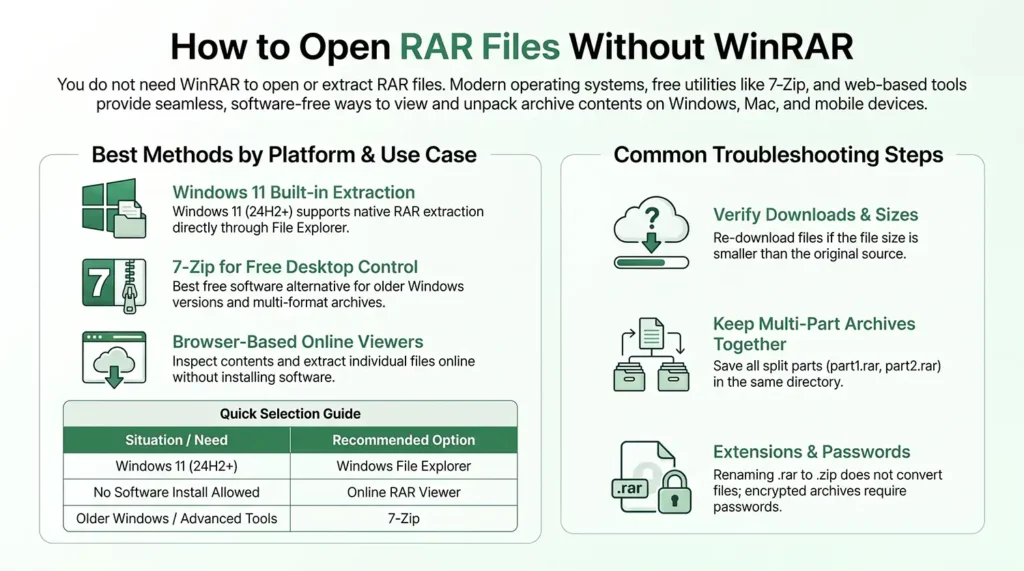
On Windows 11 version 24H2, right-click an ordinary .7z file in File Explorer and choose Extract All. If your device can’t open .7z, the browser method below turns it into a ZIP without installing 7-Zip.
For an encrypted 7z archive, use the correct password. If it came in parts such as
.7z.001and.7z.002, keep the files together and open the first part in a compatible archive app.
How to Extract a 7z File in Windows 11
File Explorer in Windows 11 version 24H2 supports ordinary .7z archives. To check your version, press Windows + R, type winver and press Enter. Microsoft’s archive support guide
- Find the
.7zfile in File Explorer and right-click it. - Choose Extract All, select a destination and click Extract.
- Open the destination folder. To extract just one file, open the archive in File Explorer and drag that file into a folder.
If Extract All is missing, try the browser method. For an encrypted archive, use a compatible app or the converter below with the correct password.
How to Open a 7z File Online Without Installing an App
Use the 7z to ZIP converter if your device can open ZIP files but can’t open .7z. The converter reads the archive and builds a ZIP in your browser.
- Click Select 7Z file and choose the archive.
- Start conversion. If prompted, enter the archive password you received.
- Download the resulting ZIP and open it in your file manager.
If you convert a protected 7z file, the resulting ZIP is unencrypted. Keep the original archive for protected storage. If a large or split archive won’t open, use a desktop app that supports it.
How to Open 7z Files on Mac
If double-clicking a .7z file doesn’t open it on your Mac, use the browser method above, then double-click the ZIP in Finder. An archive app such as The Unarchiver or Keka can extract .7z directly.
How to Open 7z Files on Android and iPhone
If your phone’s file manager can’t open .7z, convert the archive to ZIP in the browser and save it to your device.
- iPhone or iPad. Find the ZIP in Files and tap it to create an extracted folder. Apple’s ZIP instructions
- Android. Open the ZIP in Files by Google, tap Extract, then Done. Files by Google’s ZIP instructions
Dealing with Multi-Part 7Z Archives (001, 002)
Large files are sometimes split into smaller chunks, resulting in names like backup.7z.001, backup.7z.002, and so on.
Built-in operating system tools and online converters generally do not support split archives, so you will need a desktop program. Make sure all numbered parts are fully downloaded and stored in the same folder, do not rename them, and open the first file (.001) with your chosen software. It will detect and join the remaining parts automatically.
Why Won’t My 7Z File Open? (Troubleshooting)
If you are struggling to extract an archive, one of these common issues may be the cause:
- Incomplete download: If your connection dropped during the download, the file may be broken. Download it again.
- Corrupted archive: A “CRC error” or “corrupted archive” message usually means the file was damaged when it was created or uploaded. Ask the sender to compress and share it again.
- Password protection: Use a compatible app or converter with the correct password. If you don’t have it, ask the person who created the archive.
- Very large archive: Browser-based tools are limited by your device’s available memory. If a big file fails online, use a desktop app instead.
7Z vs. ZIP: What Is the Difference?
Both formats group and compress multiple files into one package, but they rely on different technologies.
The 7Z format typically uses the LZMA2 compression algorithm, which usually produces significantly smaller files than ZIP. That makes 7Z a good choice for archiving large sets of data. ZIP compresses less tightly, but it is universally supported and opens natively on virtually any modern device without extra software.
Which Method Should You Choose?
| Your Device / OS | Best Method |
|---|---|
| Windows 11 24H2, ordinary .7z | Native File Explorer (Right-click > Extract All) |
| Windows 10 or no Extract All option | Online 7Z to ZIP converter |
| Mac (without installing apps) | Safari + online converter |
| iPhone / iPad (iOS) | Browser-based conversion to ZIP |
| Android | Chrome + online converter |
| Password-protected 7z | Compatible app or converter with your password |
Split 7z archive (.7z.001) |
App that supports split 7z with all parts together |
Frequently Asked Questions
Can I rename a .7z file to .zip to open it?
No. Changing the extension from .7z to .zip does not change the file’s internal structure, so it will not open as a ZIP. Renaming it back to .7z restores it to its original state.
Is it safe to process personal 7Z files online?
Xplore converts files in the browser. For data that must stay encrypted, keep the original archive and follow your organization’s rules for handling sensitive files.
Why does my 7Z extraction take so long?
Extracting 7Z files can be resource-intensive, especially if the archive was created as a “solid” archive or uses a large dictionary size. Processing big archives in a web browser is also limited by your available RAM, which can make it slower than a native desktop app.