Turn a contact spreadsheet into a vCard file without rebuilding every person manually
Contact spreadsheets rarely use exactly the same column names. One
file says Phone, another says Mobile, and an
export from another system might use Telephone or
Cell.
That is why this converter does more than assume that column number two is always a phone number. It reads the CSV headers, makes a first attempt at identifying common contact columns and then lets you fix the mapping before anything is exported.
Once the columns are right, the contact rows are turned into one vCard 3.0 VCF file that can be downloaded and used in another contact workflow.
This contact builder is part of Xplore File Manager, where conversion tools expose the important decisions—such as column mapping—instead of silently guessing how your data should be interpreted.
How to convert a CSV contact list to VCF
The most important part is not clicking Download. It is checking the mapping first so names, phone numbers and emails end up in the right vCard properties.
Choose the contact CSV
Click Choose CSV file or drag a
.csv file onto the converter.
The current browser version accepts CSV files up to 40 MB. The first parsed row is treated as the column-header row and at least one contact row must follow it.
The converter detects the CSV structure
Not every so-called CSV is comma-delimited. The current parser samples the file and chooses between comma, semicolon, tab and pipe delimiters.
Quoted fields are parsed too, including doubled quotation marks and line breaks that appear inside a quoted cell.
Check every important column mapping
The converter tries to recognize headers such as
Name, Full Name,
First Name, Mobile,
Email, Company and similar common
labels.
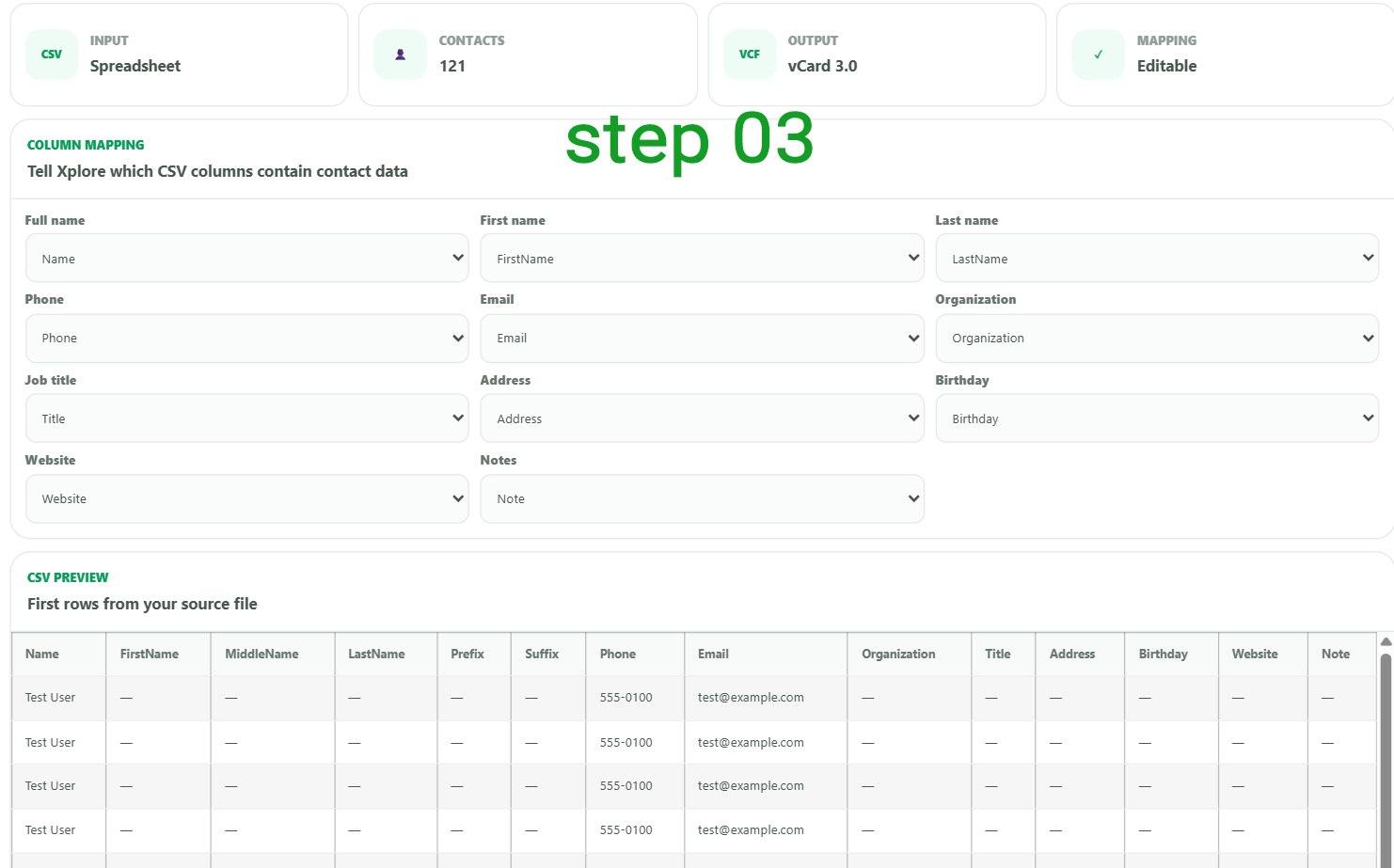
Those guesses are editable. Map the CSV columns to Full name, First name, Last name, Phone, Email, Organization, Job title, Address, Birthday, Website and Notes before building the VCF.
Preview the source rows and choose the VCF filename
The CSV preview keeps the original spreadsheet columns visible so you can compare the mapping with the actual data.
The visual preview currently shows the
first 20 contact rows. You can also edit the
output basename before .vcf is added.
Create and download the vCard file
Click Create & Download VCF after the mapping looks correct.
Every usable row becomes a vCard 3.0 contact and the cards are
written together into one .vcf download.
Header detection is a shortcut, not something you should trust blindly
The mapper recognizes several common naming patterns. A header such
as Mobile, Cell,
Telephone or Tel can all be reasonable
candidates for the Phone field.
The same idea is used for names, email, company, title, address, birthday, website and notes. But spreadsheets are messy, so the mapping remains editable on purpose.
At least one identifying contact column has to be mapped
The converter will not create a VCF if Full Name, First Name, Last Name, Phone and Email are all left unmapped.
Full name or name components
If Full Name is empty, First Name and Last Name are combined to build the formatted contact name.
A contact can be built around a phone number
Phone data can provide a usable contact identity even when a row does not have a complete display name.
Email can also identify the contact
An email value can be used as the fallback contact label when a normal name is unavailable.
Completely unusable rows do not become blank vCards
During export, a row is skipped when it contains no usable formatted name, phone number, email address or organization in the mapped fields.
This prevents a mostly empty spreadsheet row from turning into a meaningless blank contact in the final VCF.
Use the separator the converter actually understands
If one mapped Phone or Email cell contains multiple values separated
by | , the converter creates separate TEL or EMAIL
properties for those values. A random comma-separated list is not
automatically split into several contact properties by the current
exporter.
+1 555 0101 | +1 555 0188
→
What does the converter actually write into each contact?
Every generated card starts with
BEGIN:VCARD and VERSION:3.0 and ends with
END:VCARD.
Depending on the mapped data, the card can contain N, FN, TEL, EMAIL, ORG, TITLE, ADR, BDAY, URL and NOTE properties.
BEGIN:VCARD
VERSION:3.0
N:Rivera;Alex;;;
FN:Alex Rivera
TEL;TYPE=CELL:+1 555 0198
EMAIL;TYPE=INTERNET:alex@example.com
ORG:Northwind Studio
END:VCARD
Mapping a column does not verify that every value inside it is correct
The converter treats mapped values as contact data; it does not check whether a phone number is reachable, an email address really exists or a birthday uses the format expected by every destination contact app. Cleaning obviously inconsistent spreadsheet values before the conversion can make the final import much smoother.
Mapping and vCard generation happen in the browser
The CSV is read by the page, its rows are mapped to contact fields and the vCard text is generated in browser memory. The original spreadsheet remains unchanged while a separate VCF is created for download.
Questions about turning spreadsheet contacts into vCards
How do I convert CSV contacts to VCF?
Choose the CSV, review the detected column mapping, correct any mistakes, choose the output name and click Create & Download VCF.
Does the CSV need comma separators?
Not necessarily. The current parser tests comma, semicolon, tab and pipe delimiters.
Does the first CSV row need column names?
Yes. The first parsed row is used as the set of headers for column mapping.
Is column mapping automatic?
The converter suggests mappings from common header names, but every mapping remains editable and should be reviewed before export.
Which fields can I map?
Full name, first name, last name, phone, email, organization, job title, address, birthday, website and notes are available.
Can one CSV cell contain several phone numbers?
Yes, when the values are separated by a space-pipe-space sequence, such as number1 | number2.
What vCard version does the tool create?
The current output is vCard 3.0.
How many rows are shown in the CSV preview?
The current visual preview displays the first 20 data rows. The exporter processes the full set of usable contact rows.
What is the maximum CSV size?
The current converter accepts CSV files up to 40 MB.
Does conversion modify the original CSV?
No. The source spreadsheet remains unchanged and a new VCF file is downloaded.
Map the columns carefully, then build the contact file
Check the source rows, correct the automatic mapping and create one vCard 3.0 file from the usable contacts.