Export a contact backup as a spreadsheet
Use a CSV when you need to sort contacts by name, compare phone numbers or check email addresses in a spreadsheet.
Each contact gets its own row. Multiple phone numbers for the same person stay together in the Phone column.
Before downloading, you can preview the converted contacts and choose the CSV filename.
This contact converter is part of Xplore File Manager, where file tools are built around practical tasks such as inspecting, exporting and reorganizing data without requiring a separate desktop utility for each format.
How to convert VCF contacts to CSV
Open the contact file, check the resulting rows and download the CSV only after the important contact fields look sensible.
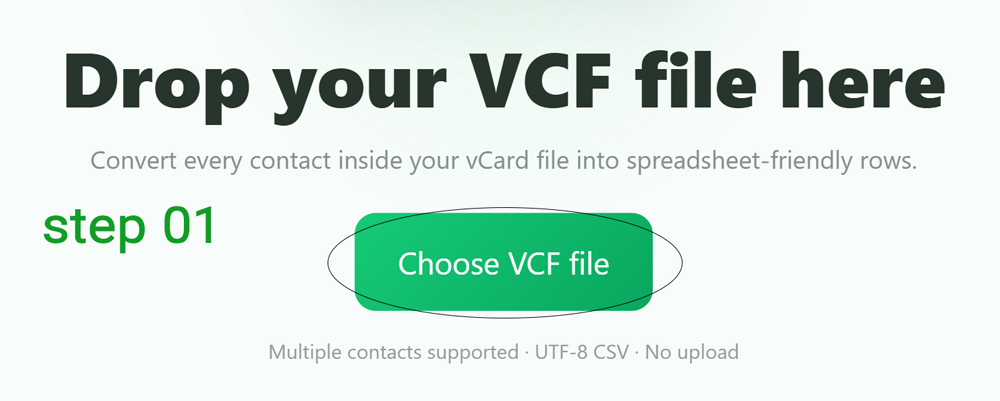
Choose the VCF contact file
Click Choose VCF file or drag the
.vcf file onto the converter.
The current converter accepts files up to 40 MB and processes every readable vCard contact block found in the source.
Contact fields are flattened into spreadsheet columns
The converter reads formatted and structured names, phone numbers, emails, organization, title, address, birthday, website and notes.
Structured name data can also become separate First Name, Middle Name, Last Name, Prefix and Suffix columns instead of being kept only as one display name.
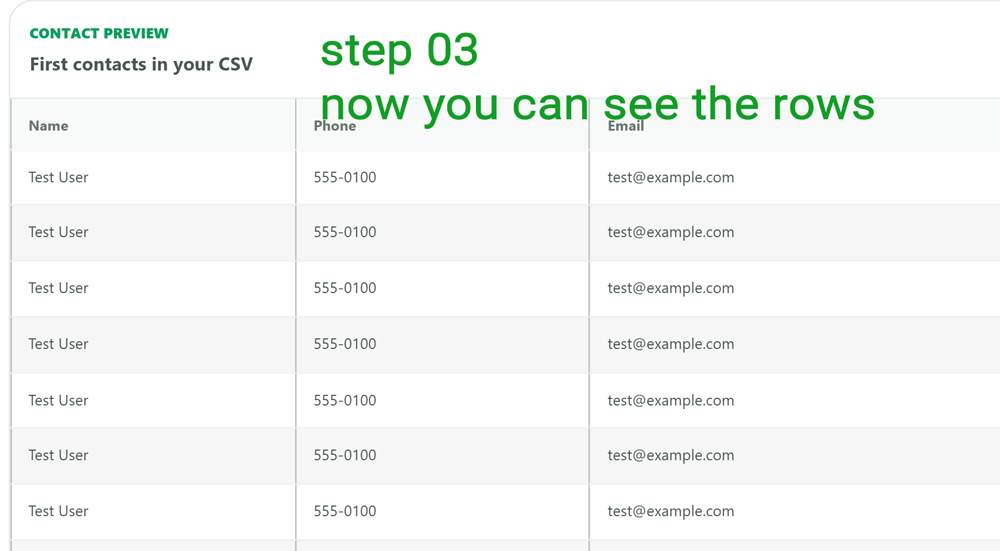
Preview the contacts before exporting
The workspace shows the total contact count and a table preview with Name, Phone, Email, Organization and Title.
For a large file, the on-page preview is intentionally limited to the first 100 contacts. The downloaded CSV is not limited to those preview rows; it is built from the full parsed contact set.
Choose a useful CSV filename
The source VCF name becomes the starting point for the CSV filename, but you can change it before export.
Invalid filename characters are cleaned and the editable basename
is limited to 100 characters before .csv is added.
Download the UTF-8 CSV
Click Download CSV to generate the complete contact table.
The download uses UTF-8 to retain names and notes in languages such as Persian. Values that look like spreadsheet formulas get a leading apostrophe so they can be read as text.
Which columns are written to the CSV?
Every exported row follows the same set of columns, which makes the contact data easier to filter or reorganize in a spreadsheet.
| CSV column | Contact information |
|---|---|
| Name | Formatted contact name |
| FirstName / MiddleName / LastName | Components from the structured vCard N field |
| Prefix / Suffix | Name prefix and suffix when available |
| Phone / Email | One or more contact values in each field |
| Organization / Title | Company and job information |
| Address / Birthday | Stored address and birthday values |
| Website / Note | Website URL and contact notes |
Several phone numbers can still fit inside one CSV row
A vCard may contain several TEL or EMAIL properties for the same person. Creating another spreadsheet row for each value would make the contact table difficult to work with.
The converter therefore joins multiple phone numbers or email
addresses inside the relevant cell using
| as a separator.
Turning vCard into a spreadsheet is intentionally a flattening process
This converter exports a useful group of common contact properties. It does not attempt to reproduce every vCard parameter or custom property in the CSV.
For example, several phone values are retained, but detailed vCard type labels and application-specific properties are not given their own dedicated CSV columns. Photos and other properties outside the exported field set are also not part of this CSV output.
Names and notes can contain commas without breaking the CSV
When a value contains a comma, quotation mark or line break, the
exporter wraps that field in CSV quotes and doubles quotation marks
inside the value. This keeps a note such as
Call Monday, after 10:00 inside one CSV cell instead of
accidentally splitting it into another column.
Contact rows are generated in the browser
The VCF text is read and parsed by the page, then the CSV is created from those contact records in browser memory. The original contact file remains unchanged while a separate CSV download is generated.
Questions about exporting vCard contacts to CSV
How do I convert VCF to CSV?
Choose the VCF file, review the contact preview, choose the output filename and click Download CSV.
Can one VCF contain many contacts?
Yes. Each readable vCard block becomes one contact record in the CSV.
Which contact fields are exported?
The CSV includes name components, phone, email, organization, title, address, birthday, website and notes.
What happens to multiple phone numbers?
Multiple phone values are joined inside the Phone cell using a space-pipe-space separator.
Does the preview show every contact?
The visual table renders up to the first 100 contacts, but the downloaded CSV is generated from the complete parsed contact list.
Does CSV preserve every vCard property?
No. The converter focuses on a defined set of common contact fields, so custom or unsupported vCard properties are not exported as CSV columns.
Is the CSV UTF-8?
Yes. The output is created as UTF-8 CSV and includes a UTF-8 BOM.
What is the VCF file-size limit?
The current converter accepts VCF files up to 40 MB.
Does conversion alter my original VCF?
No. The CSV is a separate download and the source VCF remains unchanged.
Move the contacts into a spreadsheet-friendly format
Preview the people in the file, choose a useful export name and download the full contact table.