Look inside a DMG without needing to mount it on a Mac
DMG files are usually associated with macOS, but sometimes you do not need to install anything from the disk image. You only need to find a document, image, package or another file stored inside it.
The viewer above opens readable DMG structures in the browser and turns what it can find into a searchable file list. You can check the disk-image size, see how many files and folders were exposed and download individual files without extracting the entire image.
DMG is a container rather than one universal filesystem layout, so some images expose a normal filesystem while others expose partition data or a more limited container view. The viewer reports the mode it was actually able to open instead of pretending every DMG is built the same way.
The DMG reader is part of Xplore File Manager, a collection of browser-based file utilities for inspecting archives, disk images and other formats before deciding what actually needs to be extracted.
How to open and browse a DMG file online
The useful part is not simply opening the container. It is finding out which layer of the disk image can be read and then locating the file you actually came for.
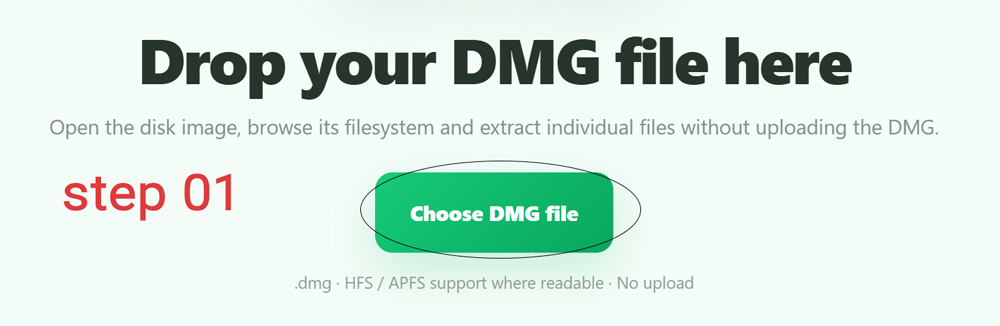
Choose the DMG disk image
Click Choose DMG file or drop a
.dmg file onto the viewer.
The current browser version accepts non-empty DMG files up to 320 MB. Larger disk images are rejected before the WebAssembly reader copies them into its temporary browser filesystem.
The viewer works out which part of the disk image is actually browsable
The DMG is passed to a browser version of 7-Zip. The tool first inspects and extracts the outer disk-image structure, then checks whether that already looks like a real filesystem.
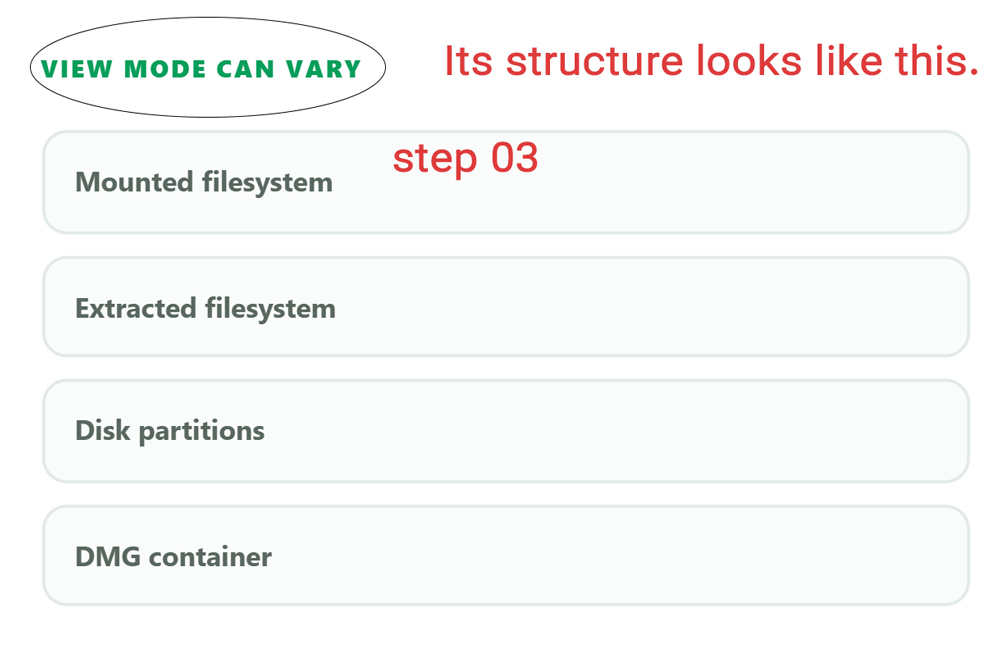
If necessary, it also examines likely partition or filesystem files inside the DMG and tries to expose their contents. That is why the resulting View Mode can differ between disk images.
Check the file count, folders and view mode before searching
Once the image opens, the workspace reports the number of files, number of folders and original DMG size. It also shows the browser engine and the mode that successfully exposed the disk contents.
If the image contains many entries, use Search files. Search checks the full stored path, so a folder name can be just as useful as a filename.
Read the path before downloading a file with a familiar name
Each result shows both the final filename and its path inside the
disk image. This is useful when a DMG contains several files named
something generic such as Info.plist,
icon.png or readme.txt.
The current interface renders up to the first 2,000 matching entries, while the DMG itself is rejected if more than 10,000 entries are exposed.
Extract the individual file you need
Click Download beside a regular file. Depending on how the DMG was exposed, the file may already exist in the browser's temporary filesystem or may be extracted on demand from an inner filesystem archive.
The download uses the file's own basename. You do not have to rebuild or download the entire DMG just to recover one item.
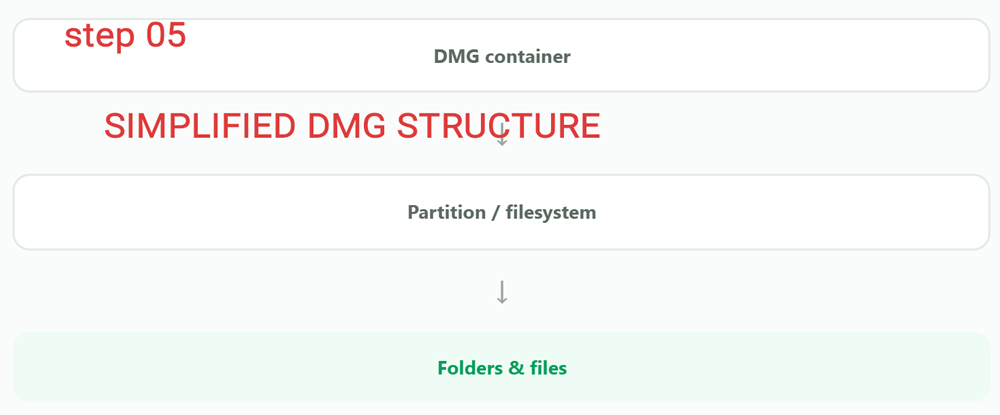
A DMG is more like a disk container than a normal ZIP archive
A ZIP is primarily a collection of compressed files. A DMG represents a disk image and can contain partitions and filesystems with their own internal structure.
That distinction is why the viewer may need to work through more than one layer before ordinary files become visible.
Why can one DMG open perfectly while another exposes only part of its contents?
DMG files are not guaranteed to contain the same filesystem or disk layout. The viewer relies on what its 7-Zip WebAssembly engine can expose from the image. Common HFS and APFS-based layouts may be readable, but support depends on the actual image structure. An encrypted or unsupported layout can therefore fail to produce a normal browsable filesystem.
DMG browsing is deliberately more conservative than simple archive viewing
The disk image has to be copied into the temporary WebAssembly filesystem before the reader can work through its structure. That is more memory-intensive than reading a small text file or a single archive directory.
The current limits are there to keep the tool useful in an ordinary browser rather than trying to imitate a full desktop disk utility.
This viewer does not mount the DMG as a real operating-system disk
See readable entries
Inspect names, paths, folders and file sizes exposed by the image.
Locate one file quickly
Filter the browser list by any text appearing in the stored path.
Download individual files
Recover a selected file without mounting the image into macOS.
The selected DMG is processed inside the browser session
The disk image is copied into the WebAssembly reader's temporary browser filesystem, inspected there and cleaned from that temporary workspace when the tool is reset. The source DMG on your device is not modified.
Questions about opening Apple disk images in a browser
Can I open a DMG file without a Mac?
The viewer can browse DMG layouts that its browser-based 7-Zip engine is able to expose, so basic inspection does not require mounting the disk image in macOS.
Can I search files inside a DMG?
Yes. Search matches text in the full path of exposed entries.
Can I extract one file from a DMG?
Yes. Regular files that are readable in the current layout receive an individual Download button.
Does the viewer support every APFS or HFS DMG?
No. Readability depends on whether the browser 7-Zip engine can expose that particular disk-image and filesystem layout.
Can it open an encrypted DMG?
There is no password-entry workflow in the current viewer, so an encrypted layout may not expose a browsable filesystem.
Why does the View Mode sometimes say Disk partitions?
That means the DMG container opened but the tool exposed partition files rather than a directly browsable inner filesystem.
How large can my DMG be?
The current browser limit is 320 MB.
How many entries can it handle?
A DMG that exposes more than 10,000 entries is rejected by the current viewer.
Does opening a DMG modify the original image?
No. The source DMG remains unchanged.
Find the file inside the disk image before extracting anything else
Open the DMG, check the exposed filesystem mode, search the paths and download only the item you need.