Browse an ISO like a filesystem instead of mounting the whole image
ISO images are often treated as something that must be mounted before you can touch the files inside. That is unnecessary when you only need to inspect the image, recover one file or package its contents into a more convenient archive.
The ISO Extractor reads ISO 9660 directory records directly from the source image and also recognizes Joliet descriptors when they are present. The result is a searchable list of folders and files with the volume name and detected filesystem shown above it.
Individual files can be downloaded directly from their byte ranges in the ISO. If the image is small enough for a bulk browser operation, all readable files can also be placed into a ZIP.
This disk-image extractor is part of Xplore File Manager, a collection of browser file tools for getting to the data you need without automatically turning every image or archive into a full extraction job.
How to open and extract files from an ISO
You can use the tool as a lightweight ISO browser or as an extractor. There is no requirement to create a ZIP if all you need is one file.
Choose the ISO image
Click Choose ISO file or drop a
.iso disk image onto the extractor.
The current browser version supports ISO files up to 4 GB for browsing. It also performs a basic size check before looking for a valid ISO 9660 filesystem.
The extractor looks for ISO 9660 and Joliet volume descriptors
The browser reads the image's volume-descriptor area and looks
for the CD001 identifier used by ISO 9660.
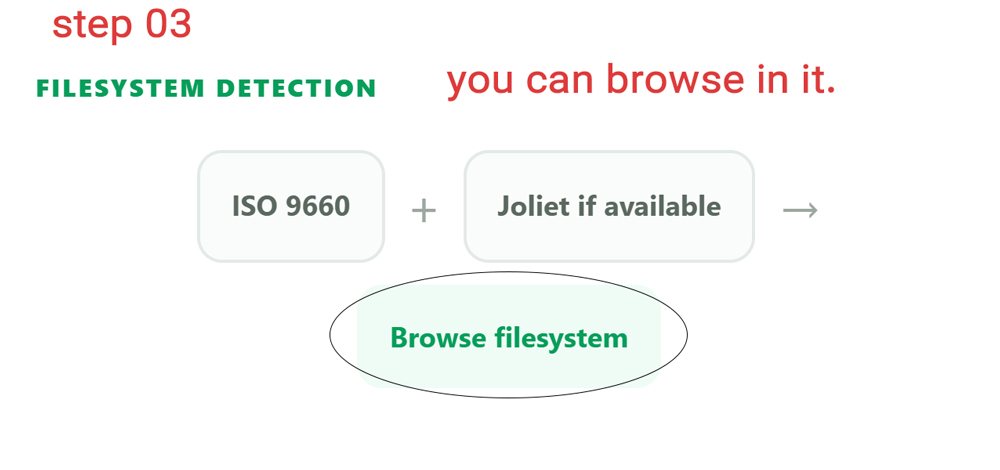
If a valid Joliet supplementary descriptor is found, the tool prefers it so Joliet-style names can be decoded. Otherwise it works from the primary ISO 9660 descriptor.
Search the filesystem and check the volume information
The workspace shows whether the image was read as ISO 9660 or ISO 9660 + Joliet, along with its volume name, file count and folder count.
Search filters the full stored paths. The visible browser list is capped at the first 2,000 matching entries, and the overall filesystem walk stops if the ISO contains more than 10,000 entries.
Download one file directly when that is all you need
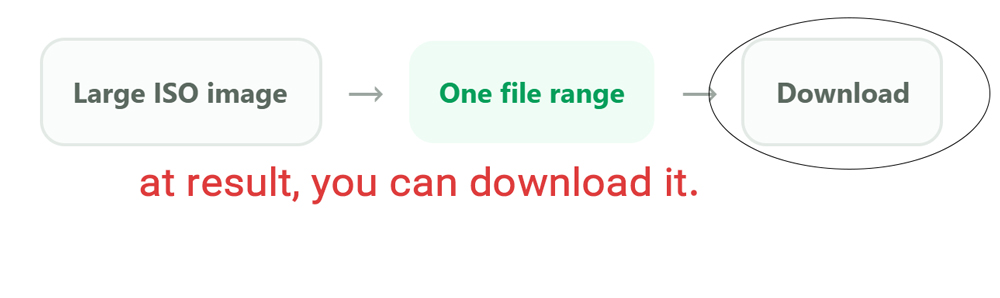
Each regular file has its own Download button. The extractor calculates that file's position from its ISO extent and reads only the corresponding byte range from the source image.
This makes individual extraction fundamentally different from building a full ZIP of the image contents.
Package all readable files into ZIP when the image is small enough
Click Download All as ZIP when you want the complete readable file set in one archive.
Bulk ZIP creation has a stricter browser-memory limit than ISO browsing: up to 3,000 files and 450 MB of extracted file data. Images outside that bulk limit can still be browsed and individual files can still be downloaded.
What is the extractor actually reading?
The tool is not treating the ISO as a ZIP archive with a different extension. It reads ISO filesystem descriptors and directory records, follows their file extents and uses those positions to locate file data inside the image.
When Joliet is present, its supplementary descriptor is used to decode filenames that need the Joliet character representation.
Browsing the ISO and creating the ZIP are two separate jobs
Up to 4 GB source images
The filesystem can be traversed using ranges from the original image, so the ISO does not have to be copied into one enormous in-memory extraction buffer.
Stricter 450 MB / 3,000-file limit
Creating a ZIP requires the readable files to be collected and packaged in the browser, which is why bulk export has its own lower limits.
Folder paths are kept when the readable ISO contents are packaged
The bulk exporter uses each file's stored ISO path as the ZIP path after cleaning empty, current-directory and parent-directory components.
The result is named from the original ISO basename followed by
-extracted.zip. The current ZIP job uses store mode
rather than trying to spend extra browser time recompressing all of
the extracted file data.
Changing a file extension to .iso does not make it an ISO 9660 filesystem
The parser specifically looks for ISO 9660 volume descriptors and optional Joliet information. An image built around another filesystem that does not expose a readable ISO 9660/Joliet structure can be a perfectly real disk image and still fail in this particular extractor.
Browsing and bulk extraction intentionally use different limits
The ISO filesystem is read directly from the selected local file
Directory structures and individual files are read from byte ranges in the source ISO inside the browser. Creating a bulk ZIP generates a separate download and does not alter the original disk image.
Questions about opening and extracting ISO disk images
Do I need to mount the ISO first?
No. This tool reads the supported ISO filesystem directly from the selected file.
Does the tool support ISO 9660?
Yes. ISO 9660 is the primary filesystem format read by the current parser.
Does it support Joliet filenames?
Yes. When a valid Joliet supplementary volume descriptor is present, it is preferred for directory-name decoding.
Can I search files inside an ISO?
Yes. Search filters entries using their complete paths inside the image.
Can I download only one file from an ISO?
Yes. Individual downloads read the byte range belonging to that file directly from the source ISO.
Can I extract the entire ISO to ZIP?
Yes, provided the readable contents contain no more than 3,000 files and no more than 450 MB of total file data.
What is the maximum ISO size?
The current browser version supports ISO images up to 4 GB for browsing.
Why can I browse an ISO but not use Download All?
Browsing reads targeted ranges from the disk image, while creating the ZIP requires collecting all file data in the browser. Bulk extraction therefore has lower memory limits.
What is the ZIP output filename?
It uses the original ISO basename followed by -extracted.zip.
Browse the image first, then decide whether you need one file or all of them
Search the ISO filesystem, download individual files or package the readable contents into ZIP when the image fits the bulk limits.